
Deposits for reservations
For reservations where you want to limit the risk of no-shows, for example large groups or special periods, you can ask for a deposit per person.
Setting a deposit per booking window
A deposit is configured per booking window, not organization-wide:
- Go to Backoffice > Reservations > Booking windows and open (or create) the window you want to require a deposit for
- Fill in Deposit per person
- Optionally fill in Deposit from party size to only require the deposit from a certain number of guests onward, for example only from 6 people
- Save
Before you can save this, you first need to choose a revenue category for forfeited deposits, see below.
General deposit settings
Go to Backoffice > Reservations > Settings.
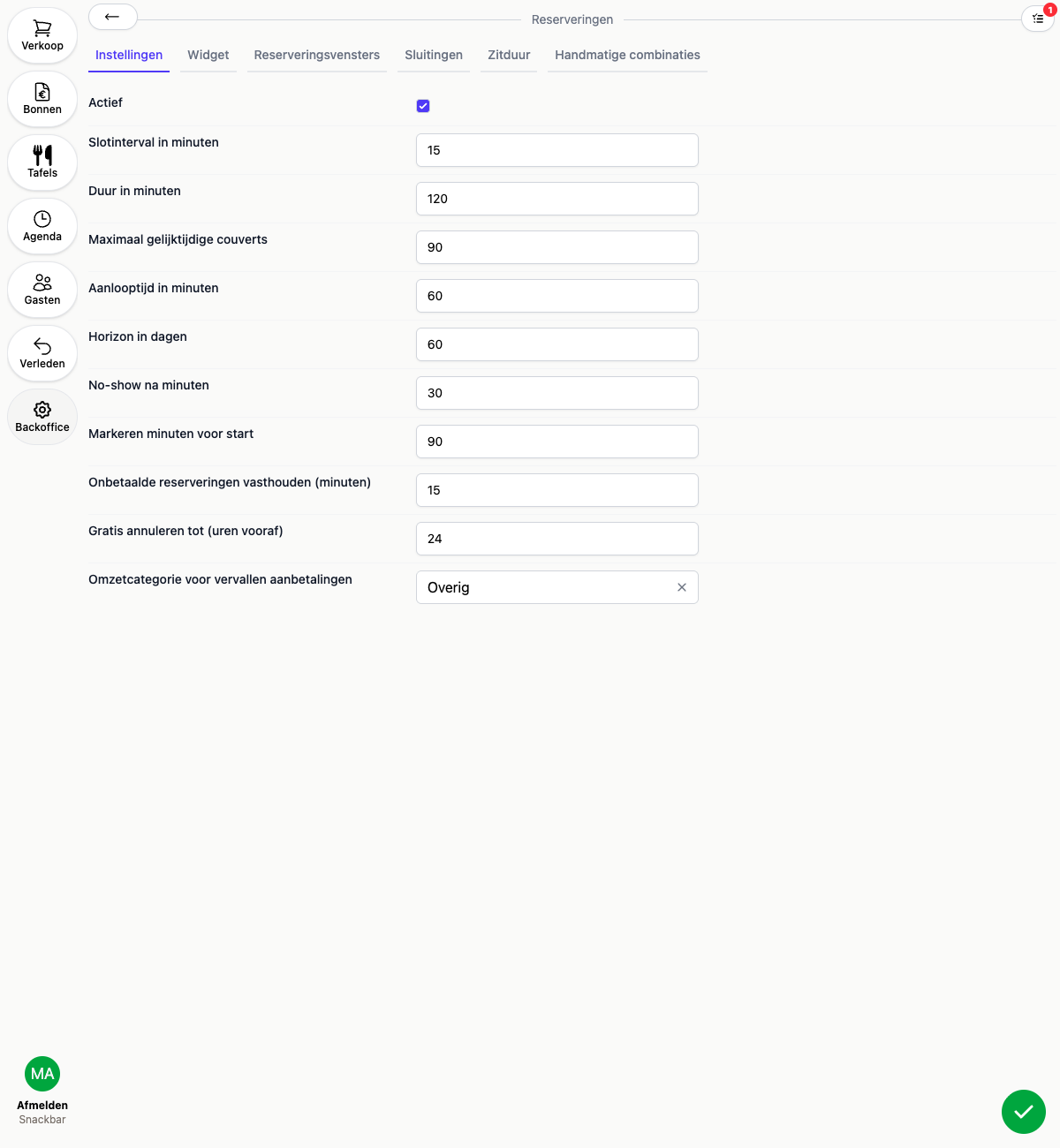
- Hold unpaid reservations (minutes): how long a table is held on an online booking with a deposit while the guest still needs to pay. If the guest doesn’t pay in time, the booking is automatically released
- Free cancellation until (hours ahead): up to how many hours before the reservation a guest can cancel for free. If a guest cancels later, the deposit isn’t refunded
- Revenue category for forfeited deposits: the revenue category a non-refunded deposit is booked to, for example after a no-show or a late cancellation
How it works for the guest
Once a window requires a deposit, a guest booking online has to pay before the reservation is locked in. If the guest doesn’t pay within the set time, the booking is automatically released and the table frees up again.
Handling a deposit on the reservation calendar
For a reservation with a deposit, you’ll see its status (“Deposit open”, “Deposit paid”, “Deposit expired”) in the action menu on the reservation calendar. From there you can:
- Request deposit: request a deposit for a reservation that doesn’t have one yet, for example for a phone booking
- Waive deposit: drop the deposit if you decide not to charge the guest after all
On a no-show or a late cancellation (past the Free cancellation until window), a paid deposit is automatically applied as compensation for the lost revenue. If a guest cancels in time, the deposit is refunded.