
Booking windows
Booking windows determine on which days and times guests can book a table online. Go to Backoffice > Reservations > Booking windows to manage them.
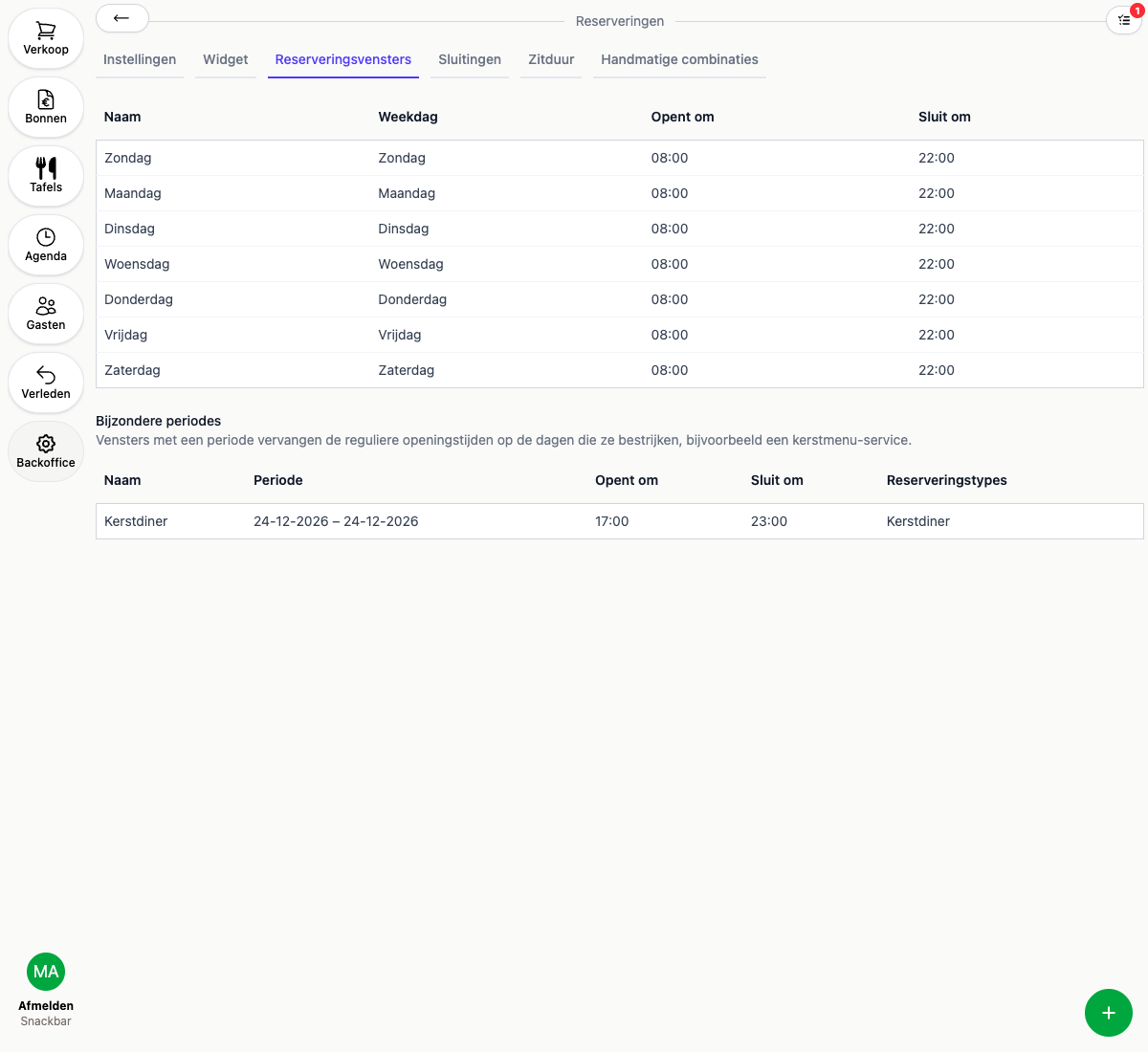
Creating a booking window
- Click the round + in the bottom right
- Choose the weekday and the time slot during which guests can book
- Optionally fill in group settings:
- Maximum party size and Maximum concurrent covers override the general settings for this window
- Duration in minutes overrides the default seating duration for reservations within this window, see Seating duration
- Deposit per person and Deposit from party size require a deposit for reservations within this window, see Deposits for reservations
- Reservation kinds: leave blank to allow every reservation kind, or pick one or more to limit this window, for example only “Lunch”, see Reservation kinds
- Save
Windows on the same weekday can’t overlap.
Special periods
Give a window a From and Through (date) to have it apply to a specific period instead of every week, for example a Christmas menu on December 24th. A window like this replaces the regular opening hours on the days it covers and shows up separately under Special periods.
Want to block online booking for a period entirely instead of creating a separate window for it? See Closures.