
Reservation calendar
Click Agenda in the register’s menu to view and manage your upcoming reservations. Above the calendar, use the arrows or the date field to jump to another day, and switch between the List and Board tabs.
If an online reservation is waiting for approval, it appears at the top in a yellow bar, with a green checkmark to approve it and a red cross to decline it.
List
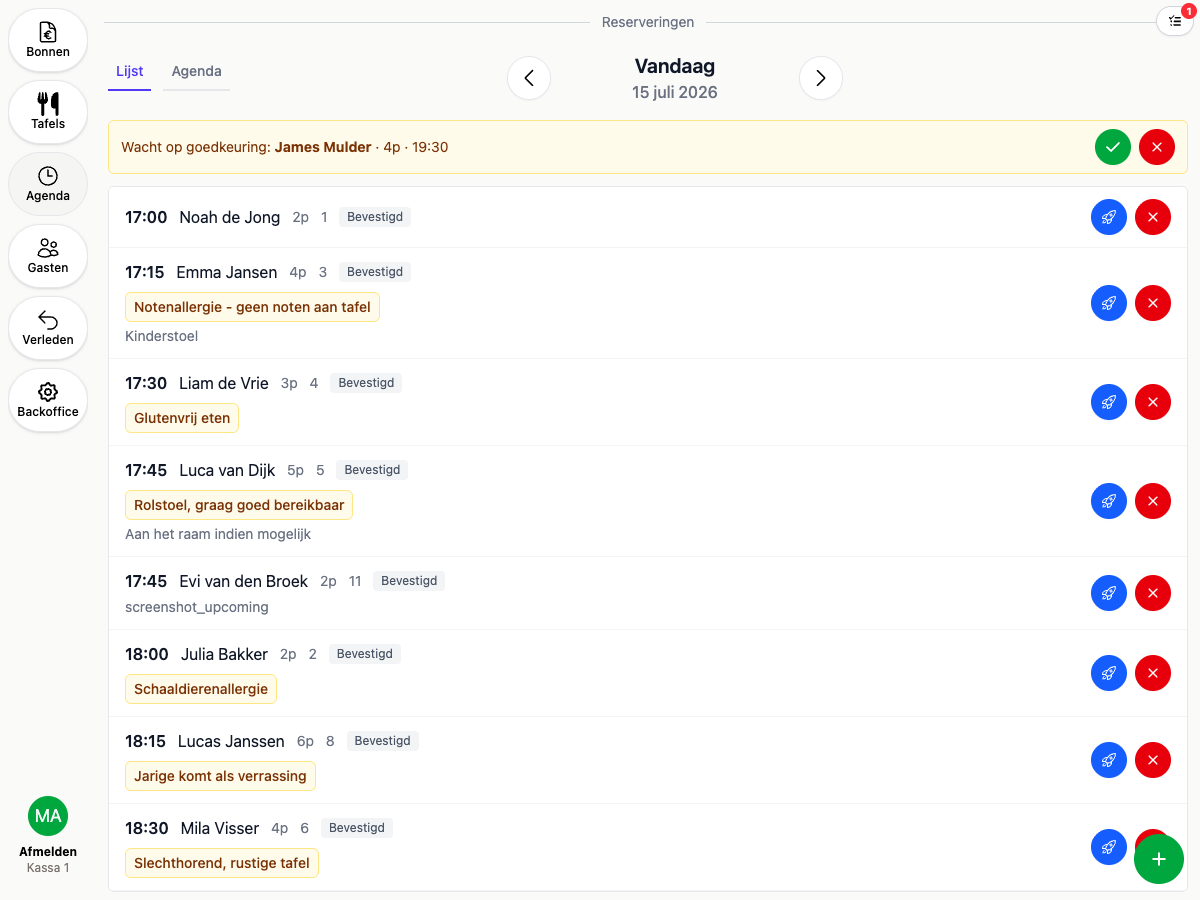
The list shows the selected day’s reservations sorted by time, with the guest’s name, party size, table, status, and any notes. Click a reservation to open and edit it. Each row has quick actions on the right, such as confirm, check in, or cancel, depending on its status.
Board
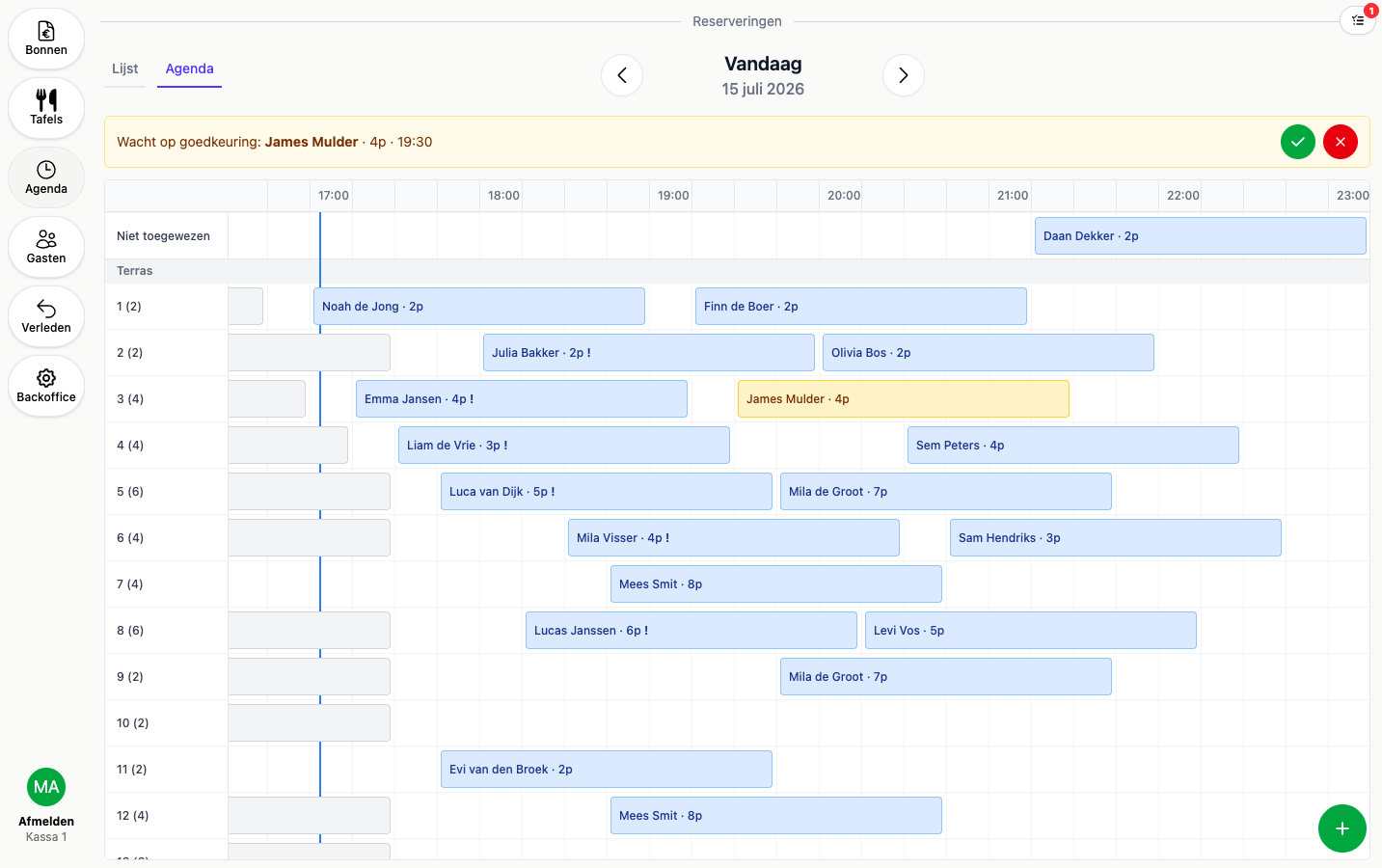
The Board tab shows the same day as a timeline: tables are the rows, grouped by area, and time runs from left to right. Reservations that don’t have a table yet appear at the top, under Unassigned.
- Click an empty slot to create a new reservation directly at that time and table
- Drag a reservation to another table or time to move it
- Click a reservation for quick actions, such as confirm, check in, cancel, or request a deposit, see Deposits for reservations
- Use the calendar next to the board (on mobile, the calendar button) to jump to another date. Days with confirmed reservations or reservations still awaiting confirmation or deposit are marked here
Adding a reservation manually
Click an empty slot at the desired table in the Board tab. Fill in the guest’s name, party size, start time and duration, and optionally a reservation kind, see Reservation kinds. Under More options you can set the status and source yourself, for example for a phone booking.