
Vouchers
Vouchers, also known as gift cards, are sold as a regular button on your POS. The guest gets a unique code and can check the balance online at any time or add it to Apple/Google Wallet.
Setting up a voucher
- Open the Backoffice and click Vouchers.
- Click + to create a new voucher type, or open an existing one via the action menu and Edit.
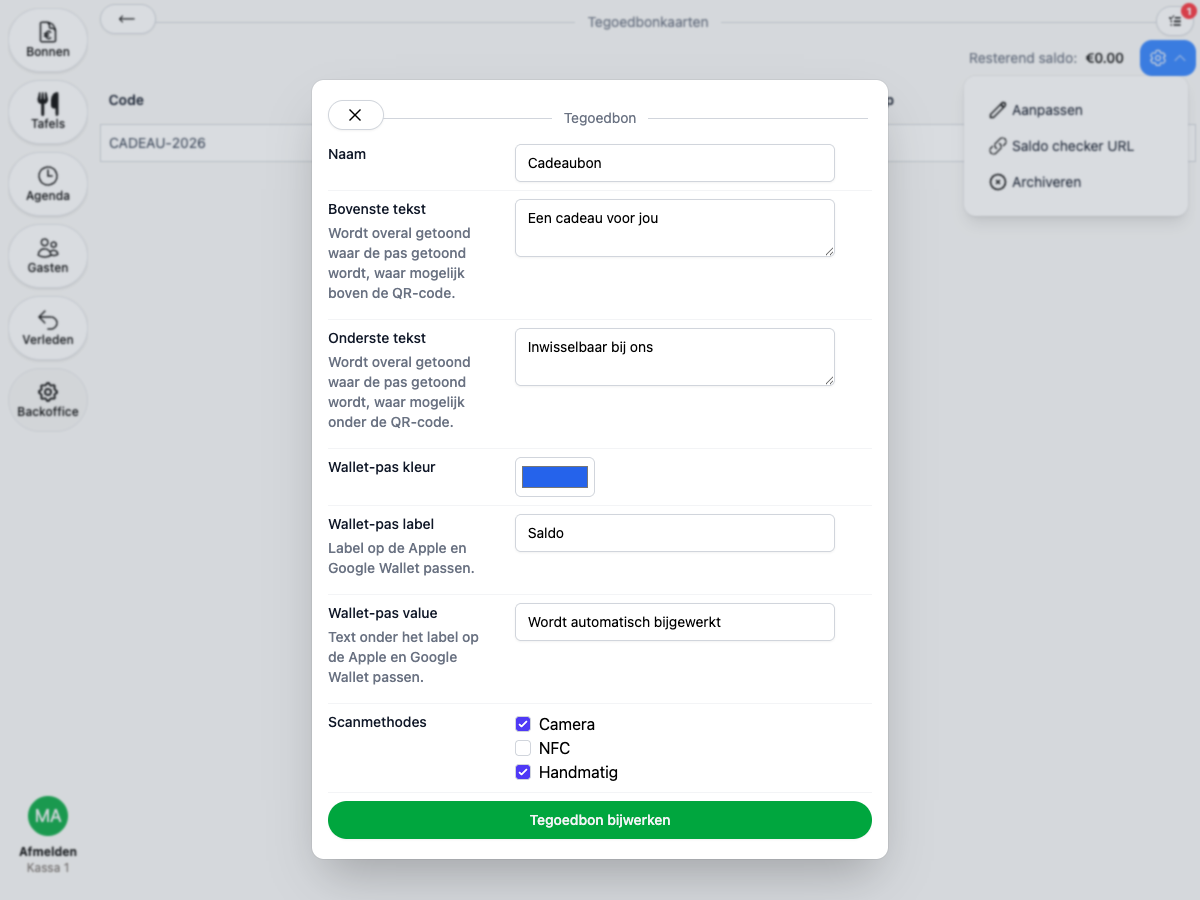
- Name: the name shown on the button in the POS and on the card itself.
- Top/bottom text: free text shown wherever the pass is shown, above or below the QR code.
- Wallet pass color: the background color of the Apple/Google Wallet pass.
- Wallet pass label/value: the label and the text underneath it on the Apple/Google Wallet pass, for example “Balance” with an explanation below.
- Scan methods: how the code gets entered at the point of sale: camera, NFC and/or manual entry.
Once a voucher type is saved, it’s ready to be added as a button on a POS screen. See Setting up your POS with buttons. Vouchers show up in the same search box as products.
Selling a voucher
- Tap the voucher’s button on the POS.
- Enter the amount the card should be loaded with.
- Enter a code, scan an existing card, or leave the field blank to have a code generated automatically.
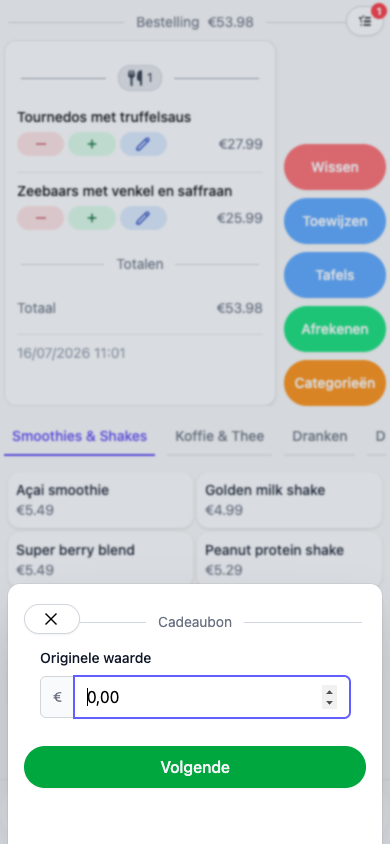
The voucher is added to the bill as a line item, with no discount applied. Once the bill is paid, the card is activated and its balance becomes usable.
Redeeming a voucher
A voucher is also a payment method: at checkout, pick it just like any other payment method, for example under Other.
- At checkout, tap the voucher’s payment method.
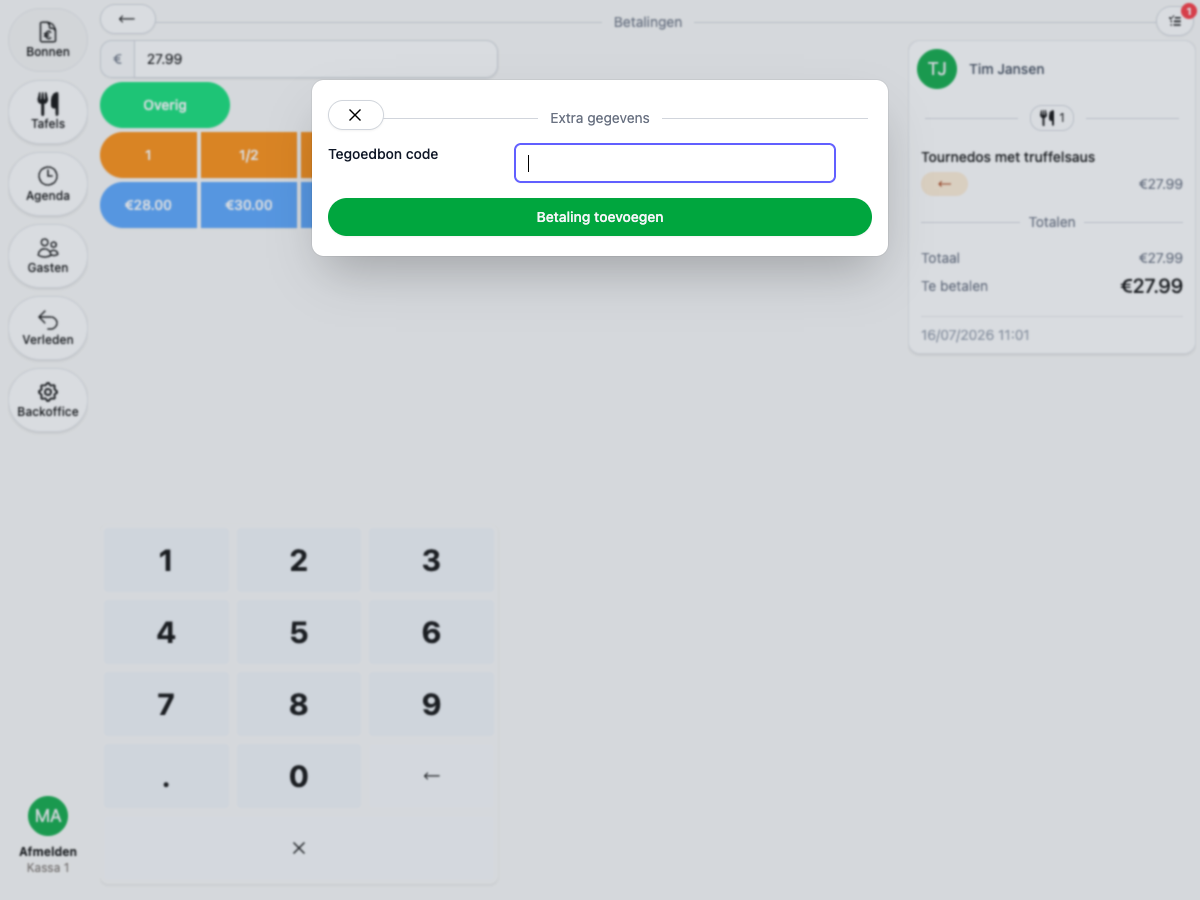
- Enter the code, scan the card, or tap it against the phone (depending on the configured scan methods).
- Confirm the amount. The remaining balance is shown if the card holds more than what’s being paid.
Checking and sharing a balance
Go to Backoffice → Vouchers → action menu → Balance check URL to generate a link guests can use to look up their own balance by entering their card’s code.
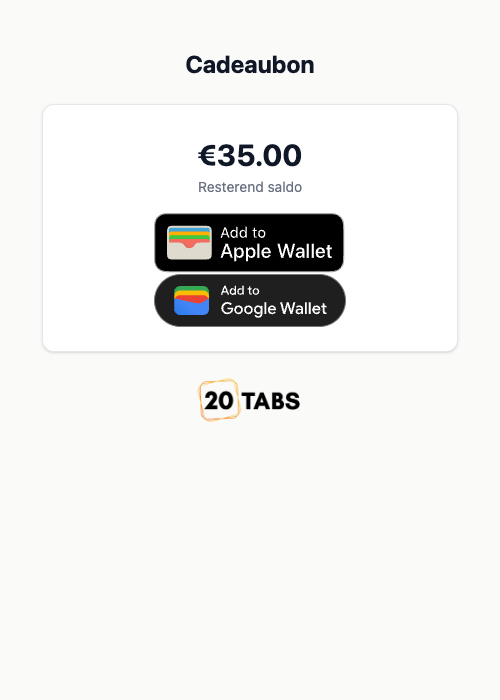
On an activated card with a balance, the guest can also add the card straight to Apple or Google Wallet from that page.
Emailing or printing a voucher
Open a sold voucher via Backoffice → Vouchers → a card. From the bill you can:
- download the card as a PDF
- download just the QR code
- email the card straight to the guest with Mail voucher
You can customize the email the guest receives via Email templates.