
Compensations
Something went wrong with a dish? Compensate the affected items directly on the tab, with a tracked reason attached. Unlike representation, a compensation isn’t a separate payment method: the amount is subtracted from the item’s own price, so your revenue and VAT are automatically already net of it.
Setting up compensation reasons
Before you can compensate anything you need at least one reason. Go to Backoffice → Compensation reasons and add reasons with the plus button in the bottom right, for example “Long wait time” or “Quality issue”.
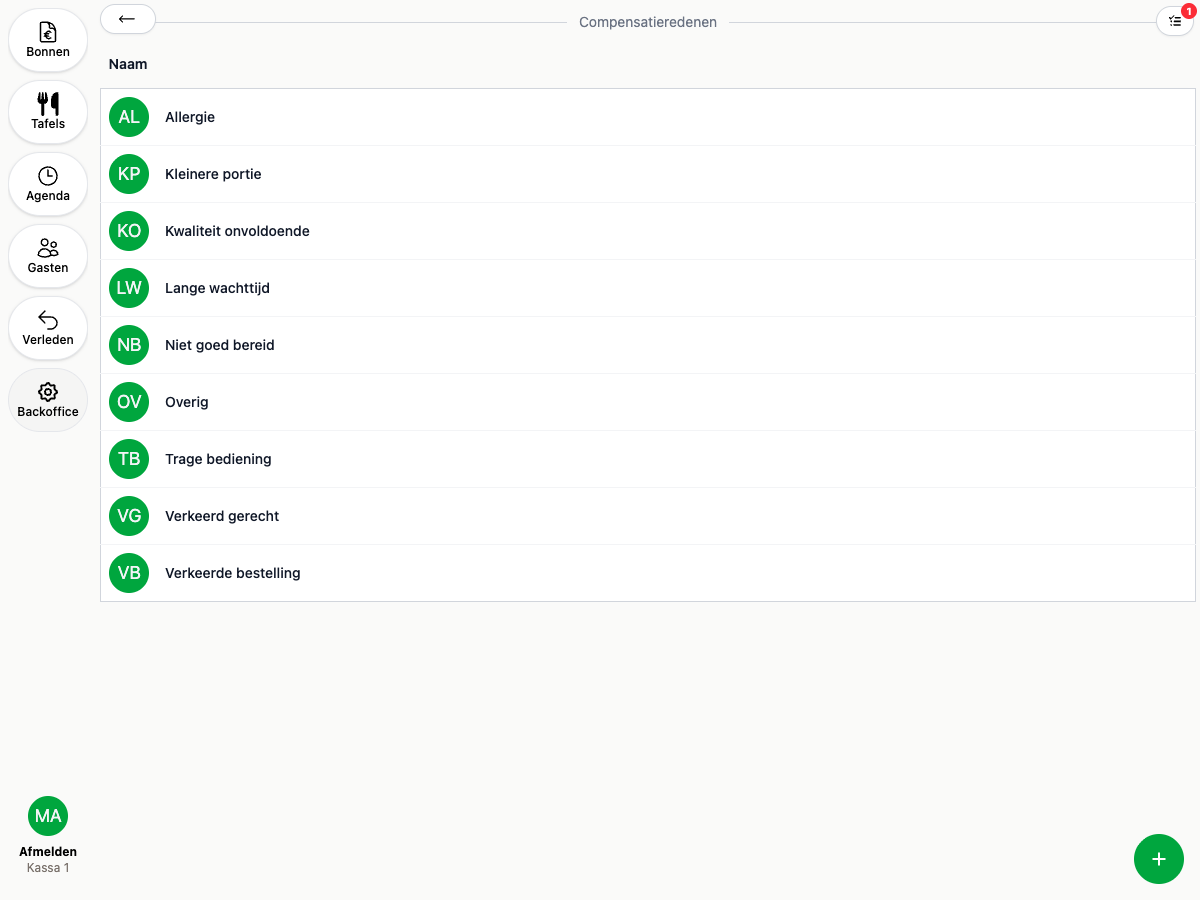
Compensating an item
- Open the tab.
- Tap Compensation in the tab’s menu.
- Use the plus and minus buttons to select which items to compensate, then tap Continue.
- Pick a reason, choose Manual or Whole dish, optionally add a note, and tap Add batch.
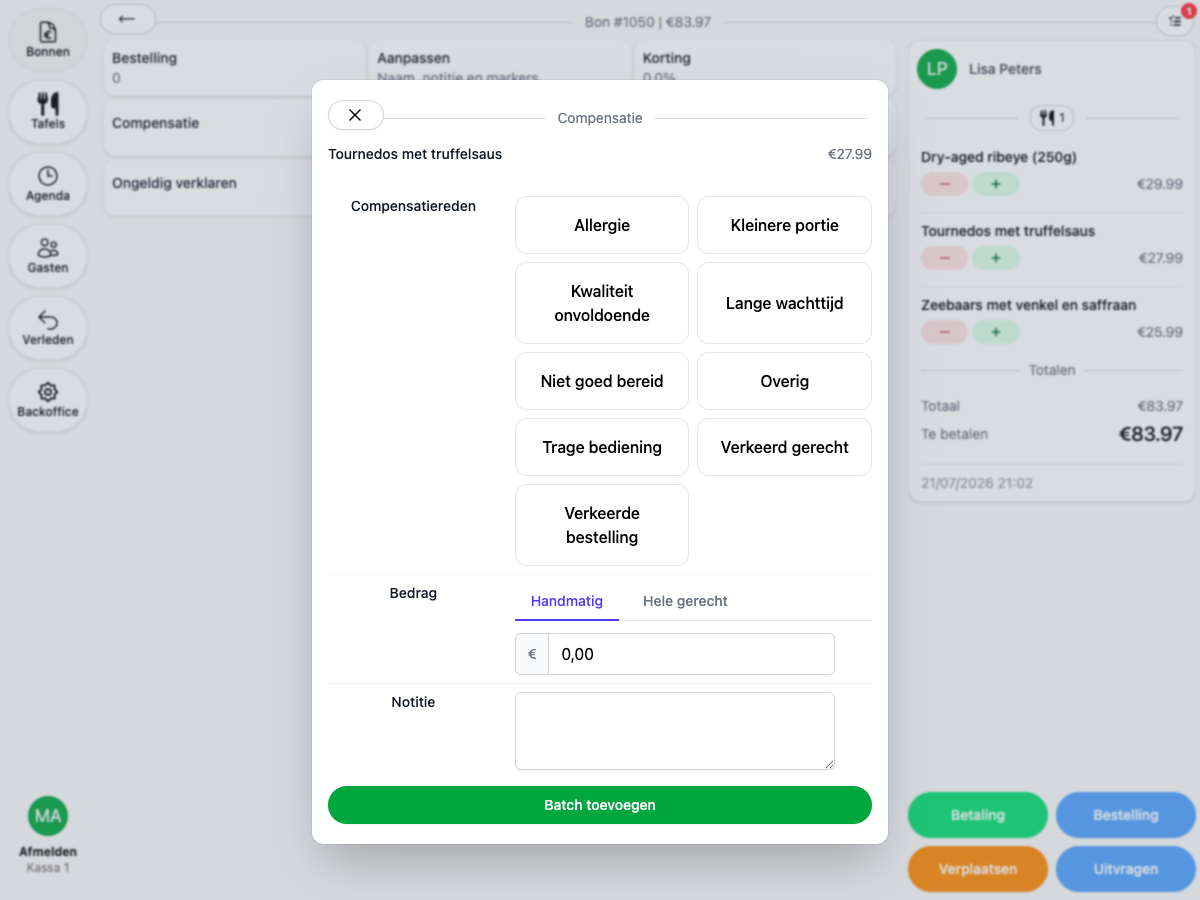
You can only compensate an item before the tab is paid. From then on, the compensated amount shows at the top of the tab.
Manual or whole dish
- Manual: you enter a total amount yourself. If you select multiple items at once, that amount is divided across the items in proportion to their price.
- Whole dish: the full price of each selected item is compensated, without you having to enter an amount.
Undoing a compensation
As long as the tab is still open, you can run the compensation flow again: select the same item, enter €0.00 under Manual, and confirm. The item gets its original price back.
Who can compensate?
Compensating falls under the Discounts permission. Give roles this permission via Backoffice → Employees. See Roles for roles and permissions.
Compensations in your reports
- The Exceptions report (Backoffice → Reports) shows per tab which items were compensated, with which reason, by whom, and for how much.
- The daily closing shows the total compensations as a separate line.