
Representation (comps)
A round on the house: these items leave your stock but aren’t sold, so they shouldn’t count as revenue. Book them with the built-in Representation payment method to record who wrote them off and for what amount.
Booking items as representation
Representation is created automatically, so there’s nothing to set up:
- Open the tab and tap Pay.
- Tap the Representation button below the receipt.
- Use the plus and minus buttons to select which items to write off, then tap Continue.
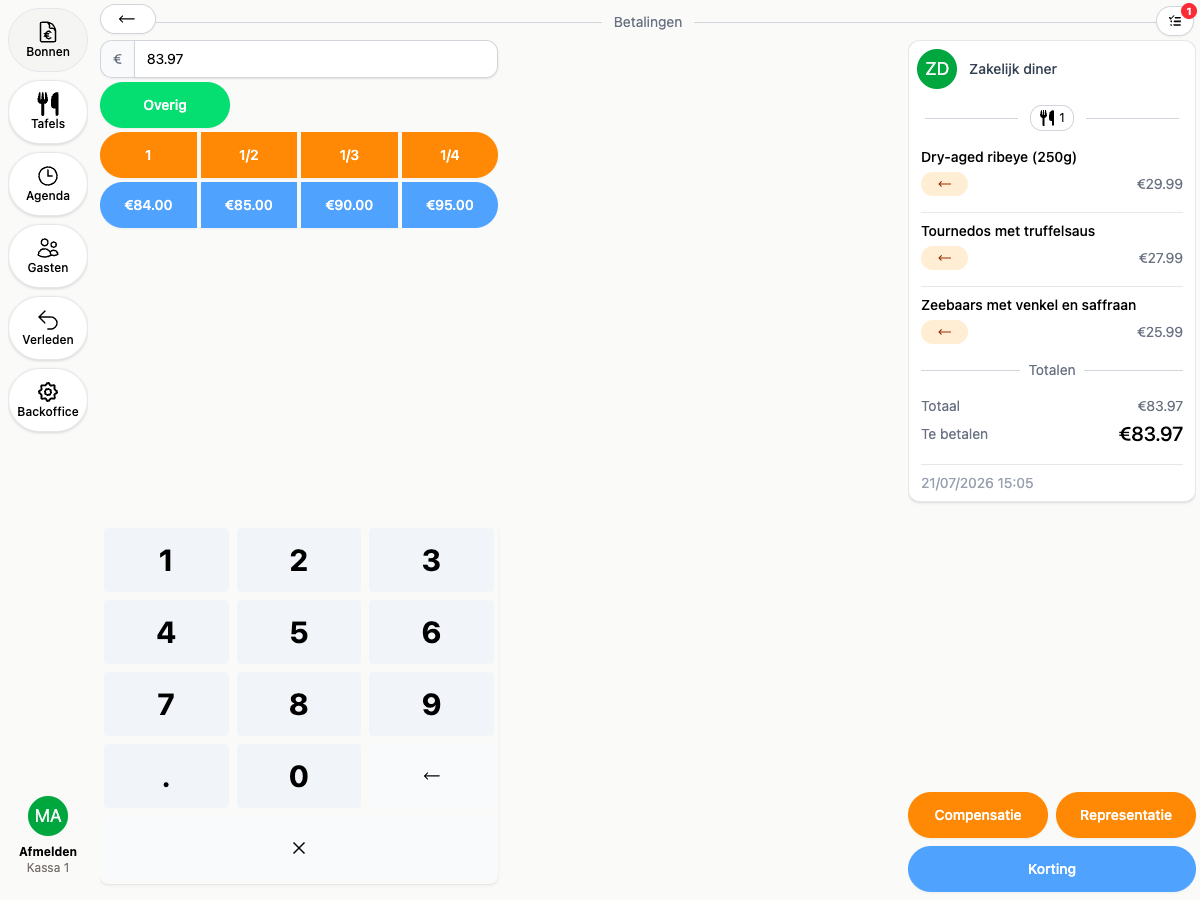
The amount is set automatically by your booking method (see below). Every booking records which employee made it.
You can undo a representation booking by removing the payment, as long as the tab is open and the day hasn’t been closed.
Cost price or sales price
In Backoffice → Settings, the Representation booking method determines the amount booked:
- Cost price: the purchase price of the items. Usually the cleanest choice for your books.
- Sales price: the price on the tab, including discounts. Values representation at what the guest would have paid.
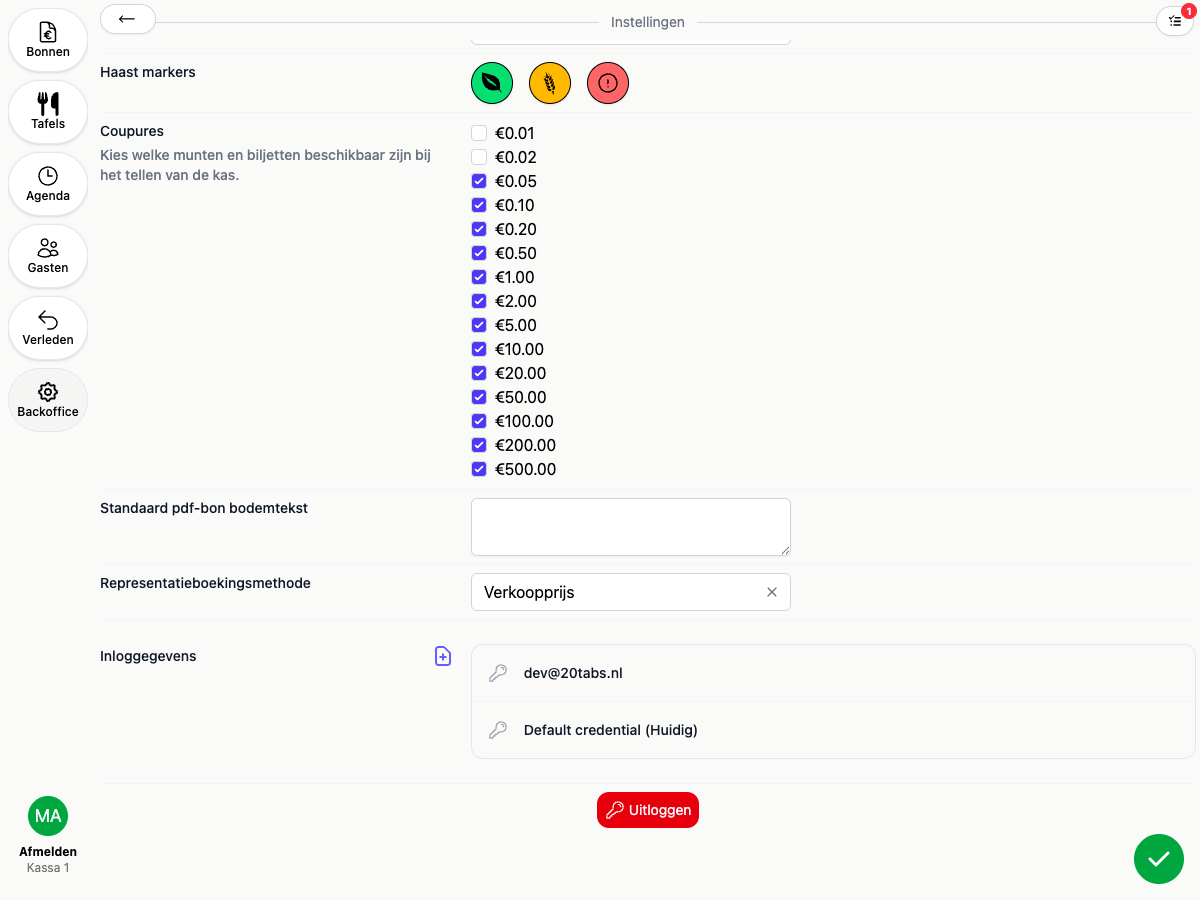
Cost price requires your products to have a purchase price set. Ask your accountant which method fits your administration.
Who can book representation?
Give roles the Representation permission in Backoffice → Employees. Employees without it won’t see the payment method at checkout. See Roles for roles and permissions.
Representation in your reports
- The daily closing shows representation as a separate line, outside your payment totals.
- The Exceptions report (Backoffice → Reports) shows per tab which items were booked as representation, by whom and for how much.
- Representation lands on its own ledger account in your bookkeeping. With an accounting integration like Moneybird or e-Boekhouden, that account is included automatically in the daily journal entries.