Restock lists
A restock list shows how much of each product actually sold in the last few hours, per product category. That way you know exactly what to bring up from the stockroom. Go to Backoffice > Restock lists.
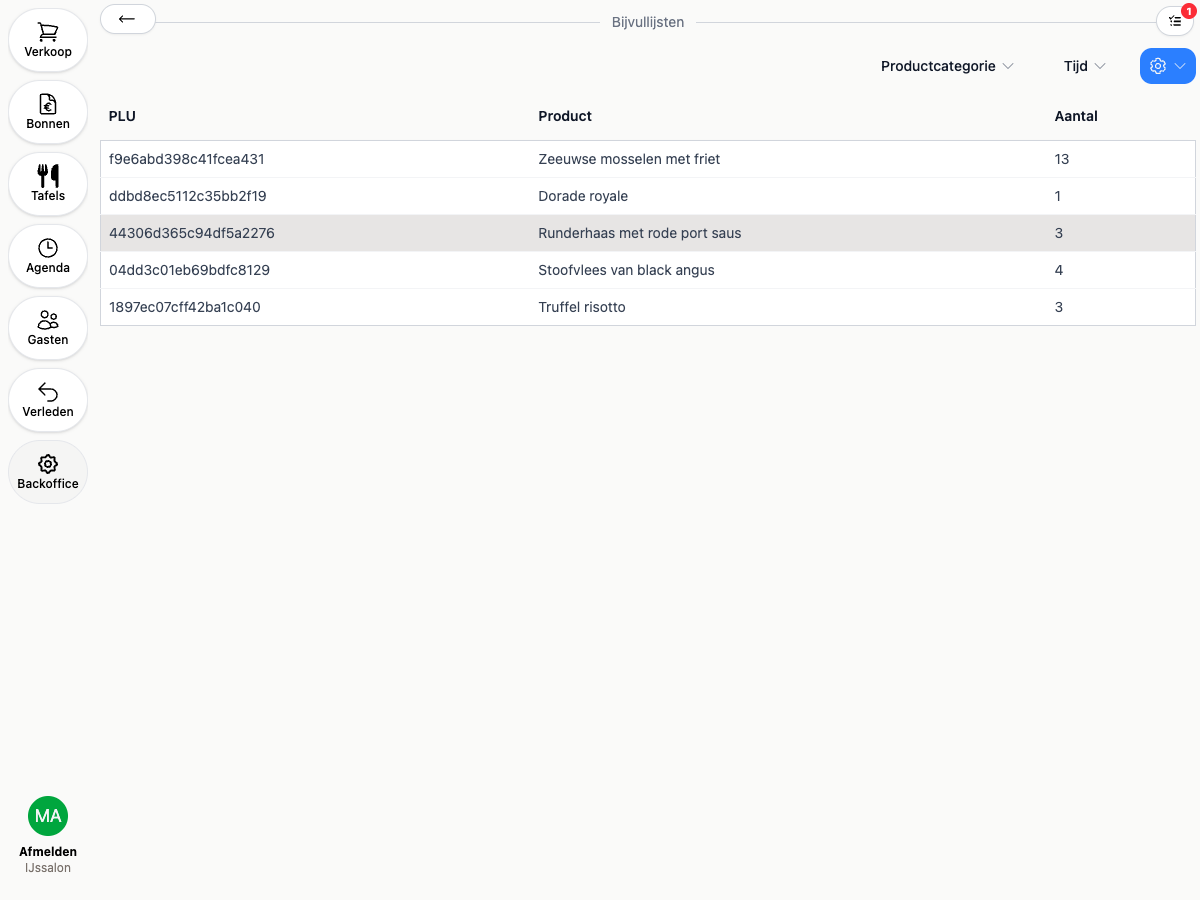
Viewing a restock list
- Pick one or more product categories from the filter
- Pick the time window: how many hours back 20Tabs should look (12 hours by default)
- You’ll see the barcode, name, and number of units sold for each product in that window
Nothing showing up? Try a longer time window, or check whether any products from the selected category actually sold.
Exporting
Click Export CSV in the action menu to download the list, for example to take to the stockroom or your supplier.
How this differs from daily stock
A restock list looks back at what already sold; it doesn’t know about a stock level you’ve set and doesn’t switch anything off automatically. Want the register to automatically mark a product sold out once stock runs out? See Daily stock management for that real-time stock counter.