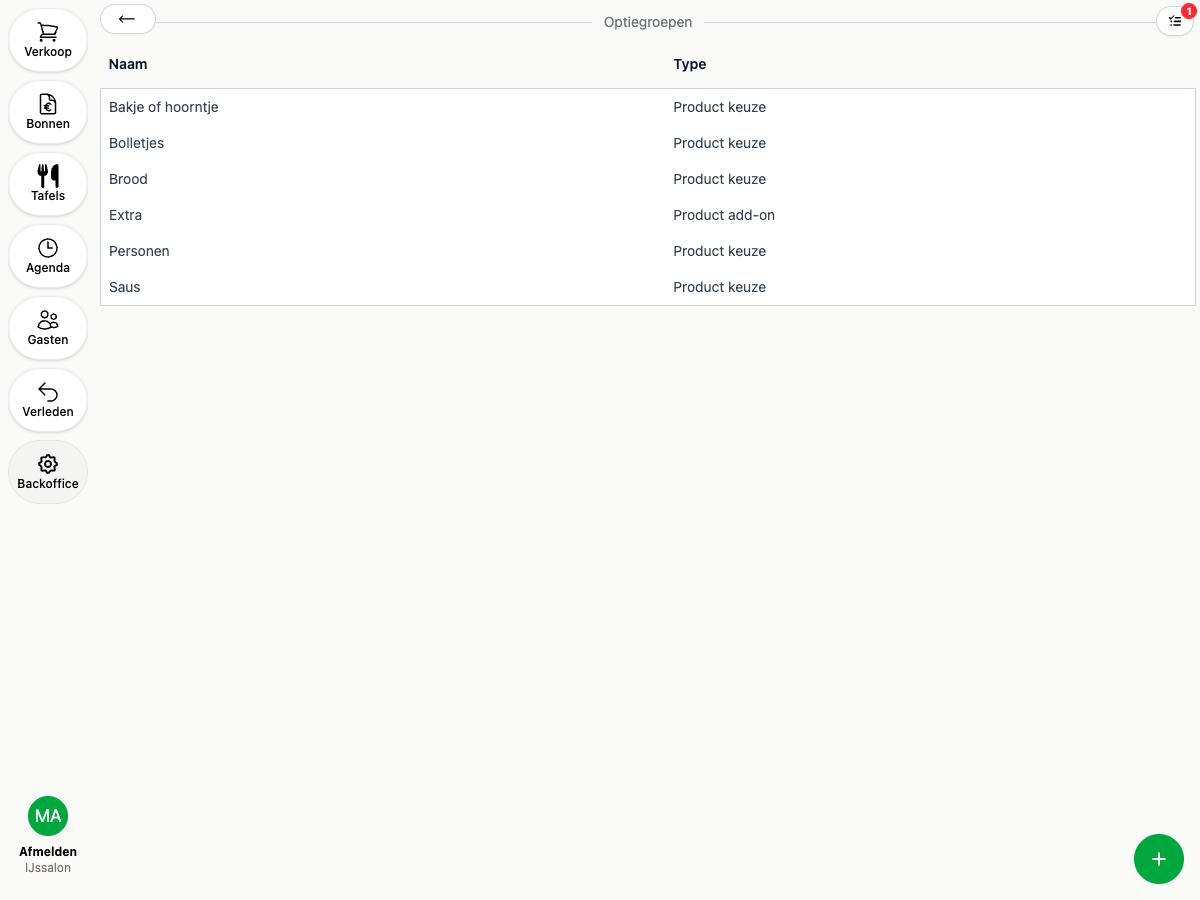
Option groups
Option groups let you offer guests choices on a product, like a size, a sauce, or extra toppings. Head to the Backoffice and click Option groups to manage them.
Types of option groups
When you create one, you pick from four types, split across two questions:
| Single choice | Multiple choices | |
|---|---|---|
| At the product | Product option | Product add-on |
| On the receipt | Option | Add-on |
- Single choice (Option / Product option) shows radio buttons: the guest picks exactly one.
- Multiple choices (Add-on / Product add-on) shows a counter per option, so a guest can pick several (or the same one more than once).
- At the product shows the choice right under the product itself, for example extra ingredients in a dish.
- On the receipt gets its own line on the receipt, for example a side dish.
Creating an option group
- Click the round + and choose the type of option group
- Give the group a name, for example “Sauce” or “Size”
- Check Required if the guest must make a choice (only available for Option and Product option)
Adding options
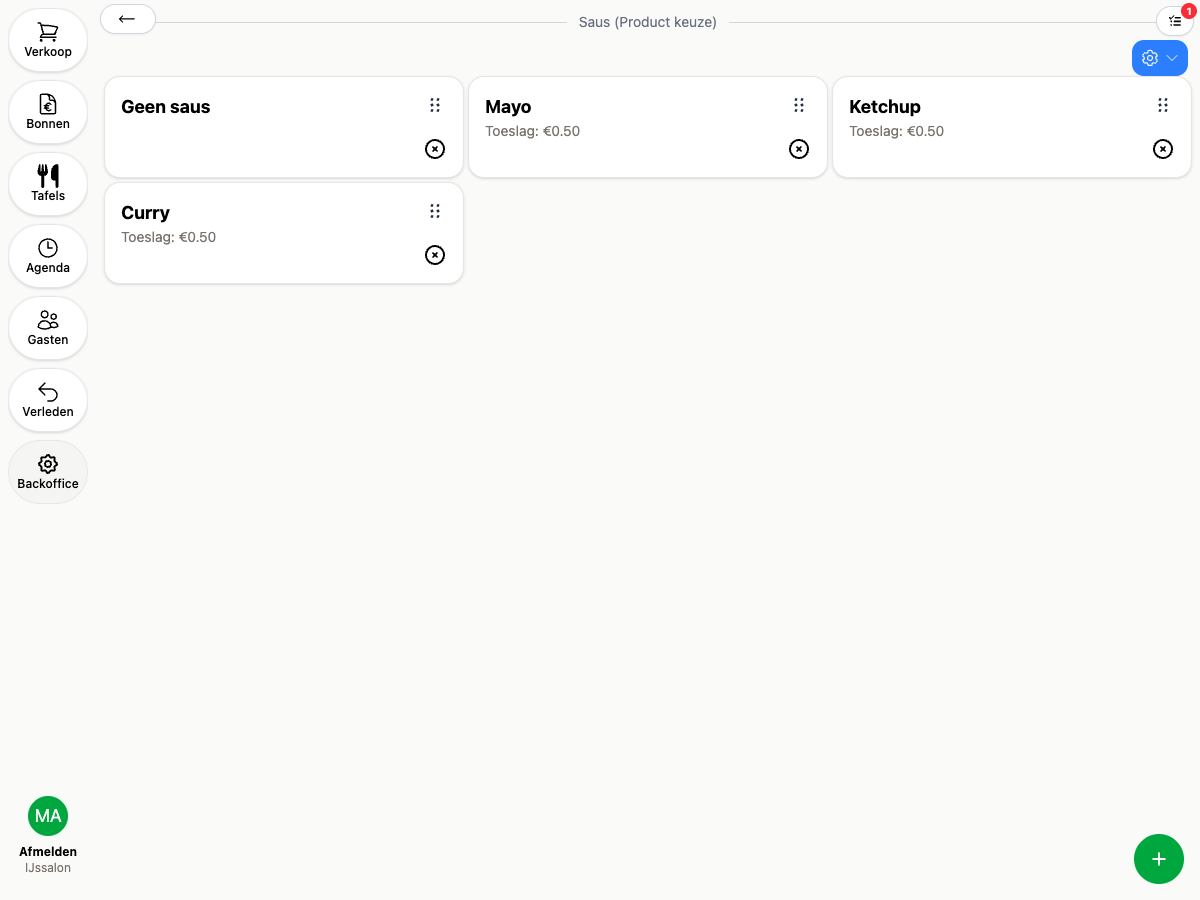
Open an option group and click the round + to add an option. Choose between:
- Set the values yourself: fill in a name and price yourself, not tied to an existing product
- Product: link an existing product. Name, price, and VAT are pulled in automatically and always kept up to date
For add-ons, also set Maximum choices per option: how many times a guest can pick it. Drag options by the dots to reorder them.
Linking to a product
Open the product in Backoffice > Products and add the option group under the Option groups field. You can link multiple option groups to one product and set the order yourself.
At the register
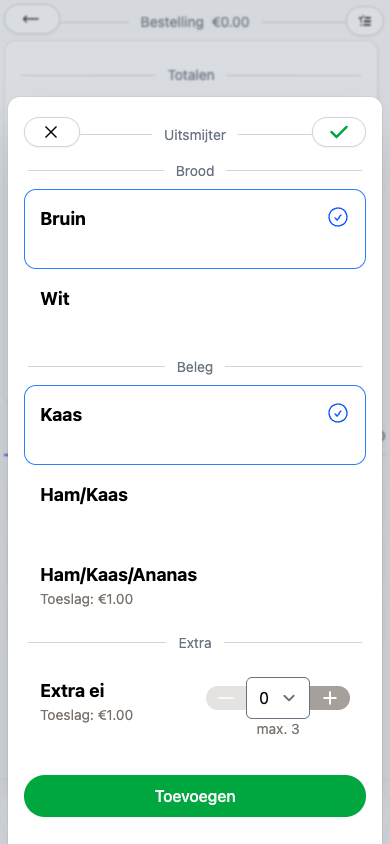
As soon as a guest adds a product with option groups, a choice screen appears. A required group must be filled in before the product can be added; a sold-out option is struck through and can’t be selected.