Solving printing problems
20Tabs sends tickets to the right printer automatically as soon as an order is rung in. If that fails once, for example because the printer is off or not on the same network, you’ll see it right away in the backoffice, along with the reason and how to fix it.
Print jobs overview
- Go to the Backoffice and click Print jobs
- You’ll see an overview of every print job from the last 7 days that hasn’t printed cleanly
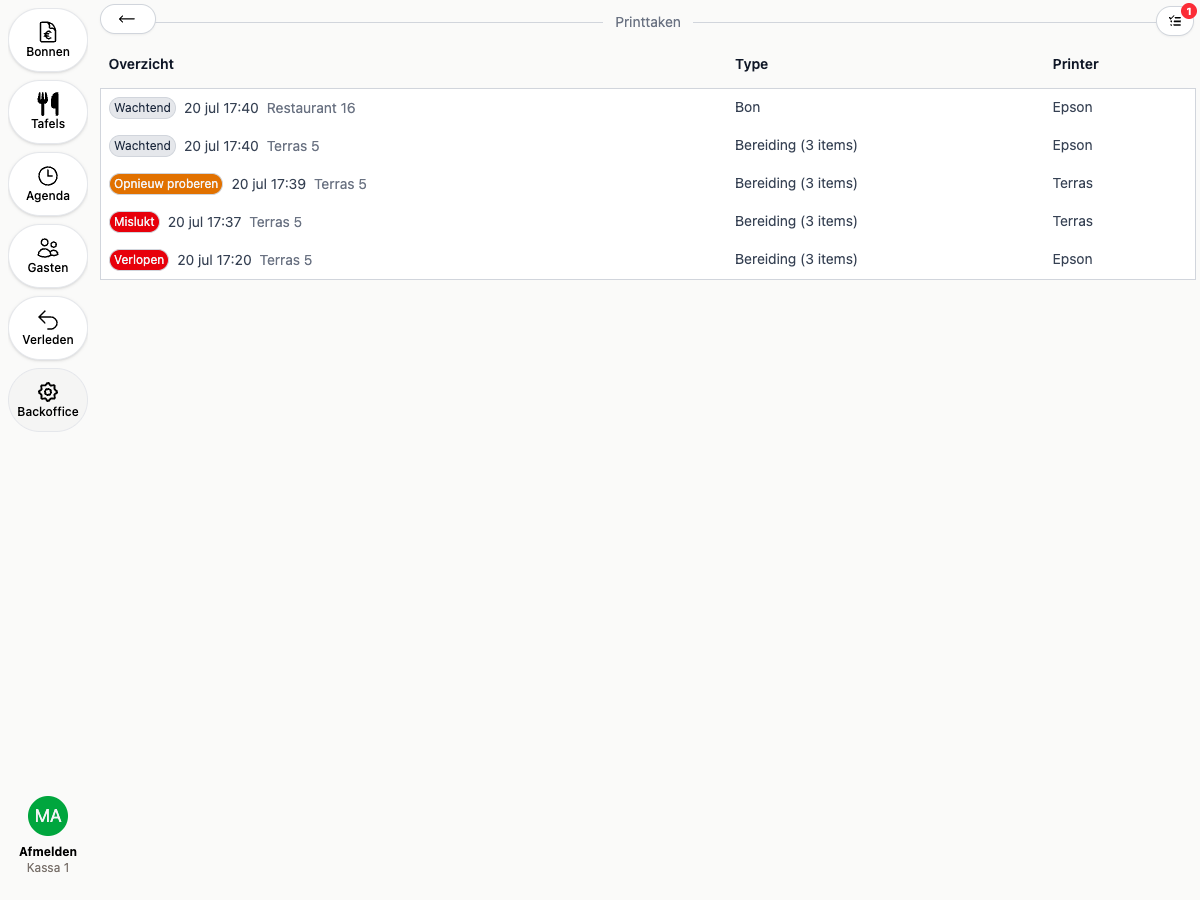
Each row shows the status, the time, which ticket or preparation it belongs to, and which printer it’s headed for:
- Pending — the job is queued and will be picked up shortly
- Retrying — printing failed once, 20Tabs is automatically trying again
- Failed — printing failed several times and won’t be retried
- Expired — no device picked up the job within 15 minutes
Viewing a failed print
Click a row with the status Retrying, Failed, or Expired to see exactly what should have been printed, along with the reason it failed.
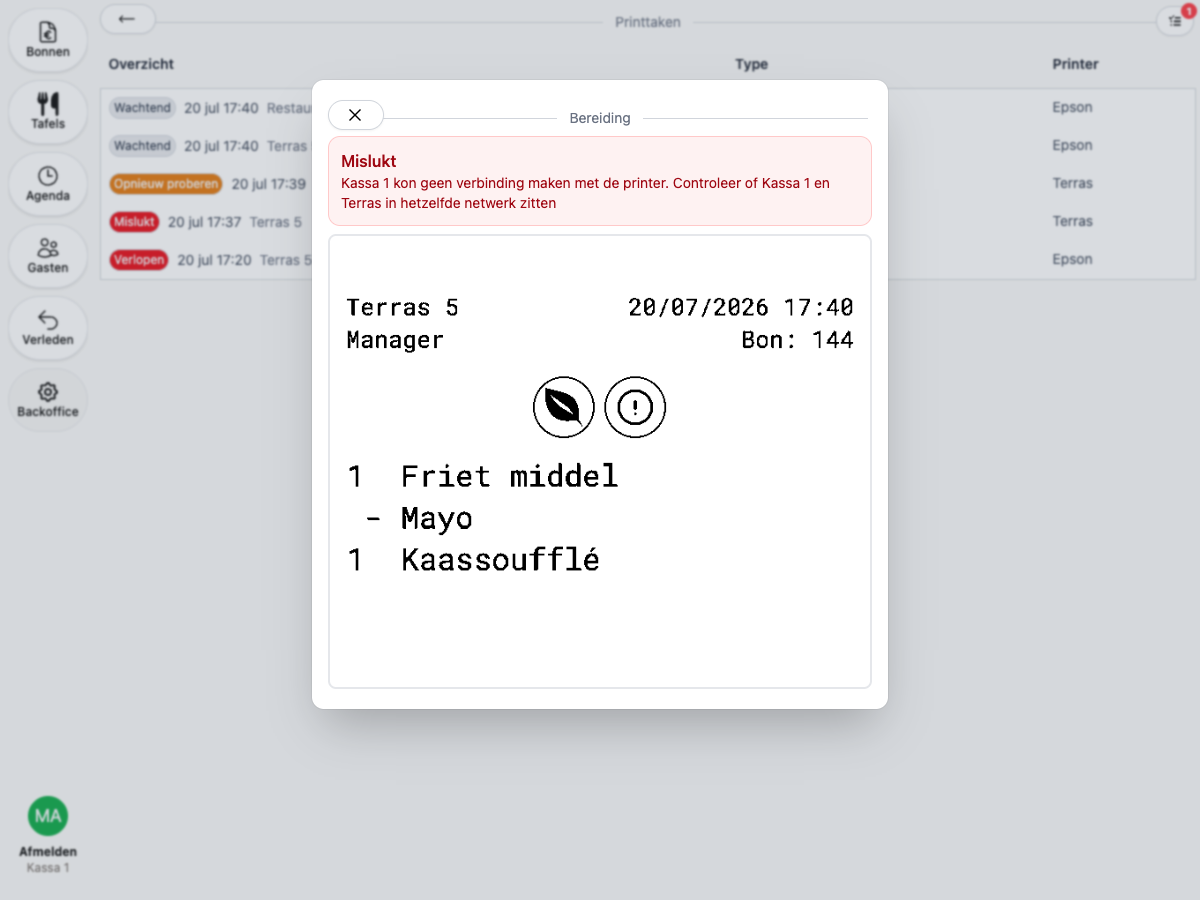
The most common cause is that the device and the printer aren’t on the same network. Check that both are connected to the same network and that the printer is powered on.
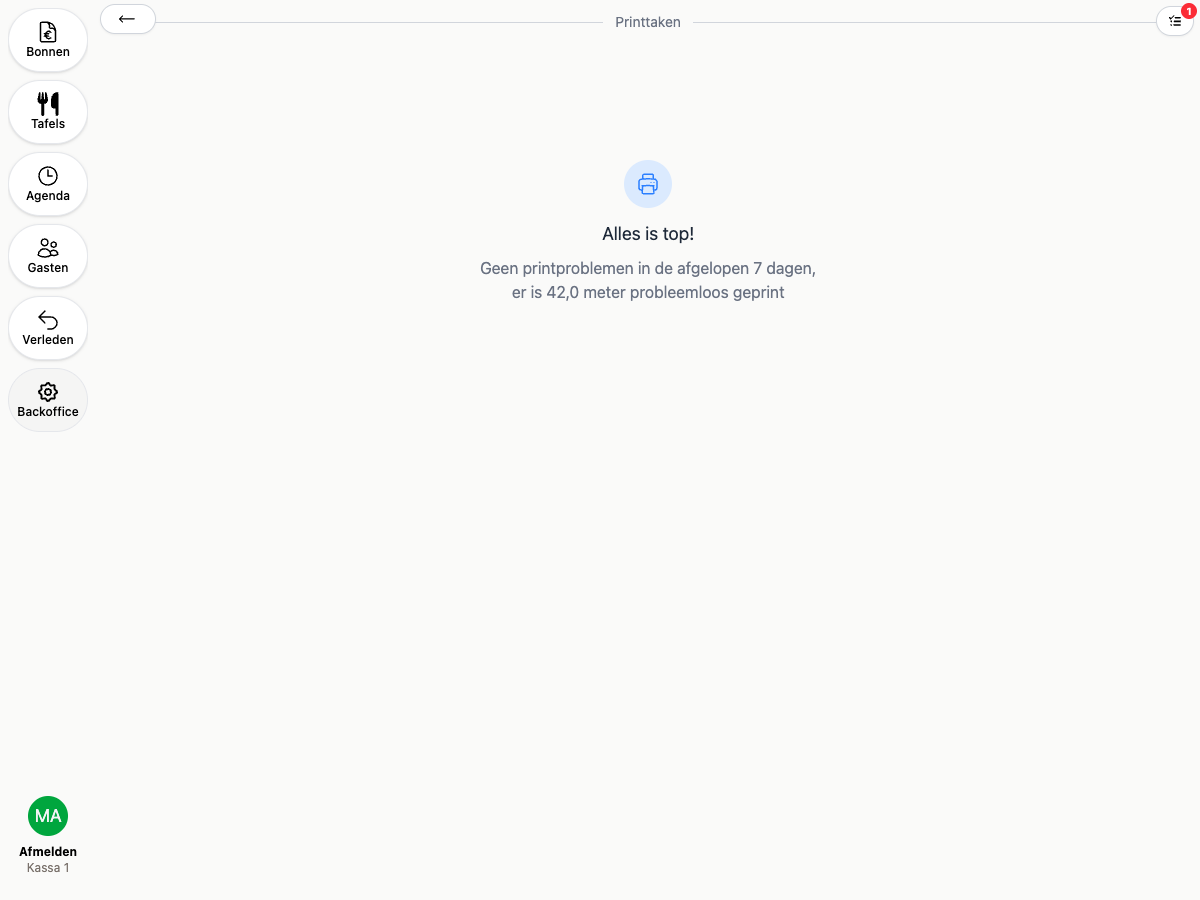
All clear
No problems? Instead of a list, you’ll see a message confirming everything’s fine.