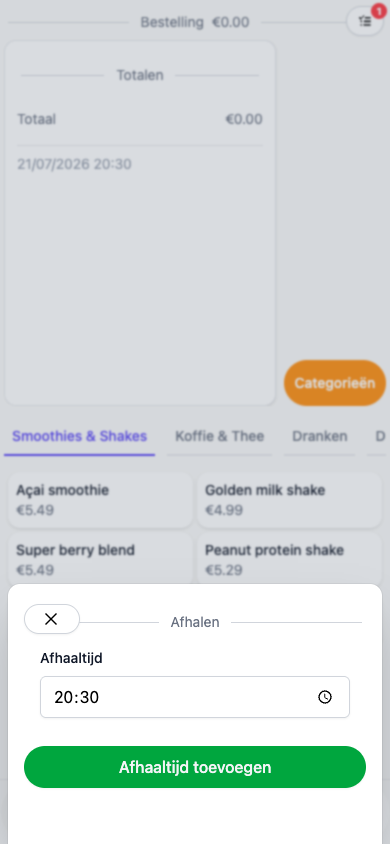
Takeout
Takeout lets you attach a pickup time to an order and makes it instantly recognizable on the register. Go to Backoffice > Settings > Takeout to turn it on.
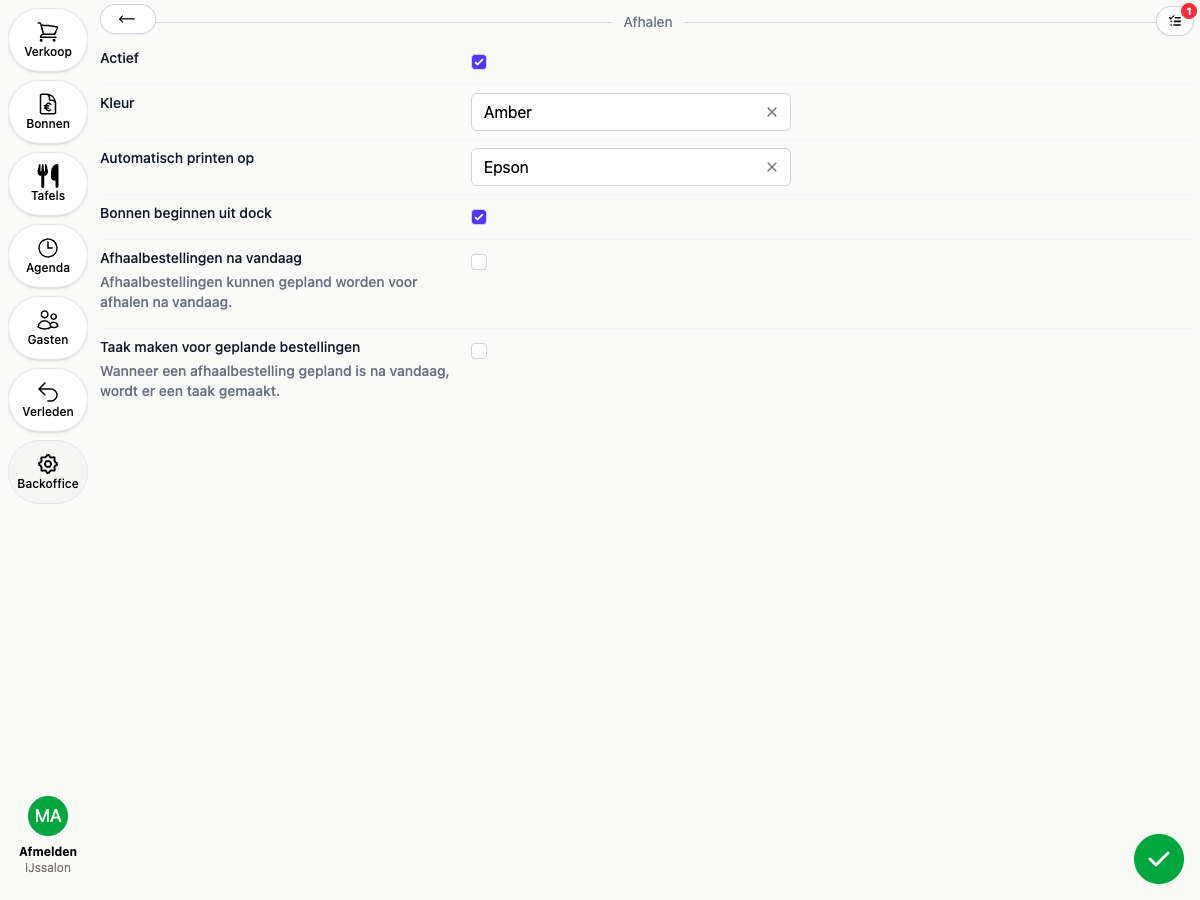
Settings
- Active: turns takeout on. If this is off, the Takeout button won’t show up anywhere on the register
- Colour: the colour a receipt gets once a pickup time is set, so takeout orders stand out among the others
- Automatically print on: pick a printer to automatically print the preparation ticket as soon as a takeout order is placed
- Receipts start undocked: receipts from this takeout order don’t start docked on the kitchen display
- Plan future takeouts: allow a takeout to be scheduled for a day in the future, instead of only a time today
- Create task for future orders: automatically creates a task whenever a takeout is scheduled for a future day
Marking an order as takeout
Add the Takeout button to your buttons screen (see Setting up your POS with buttons). At the register:
- Tap Takeout on an order
- Choose a pickup time (and, if enabled, a date)
- The order gets a label with the pickup time. It’s shown everywhere, including on kitchen displays.