Kitchen display screens
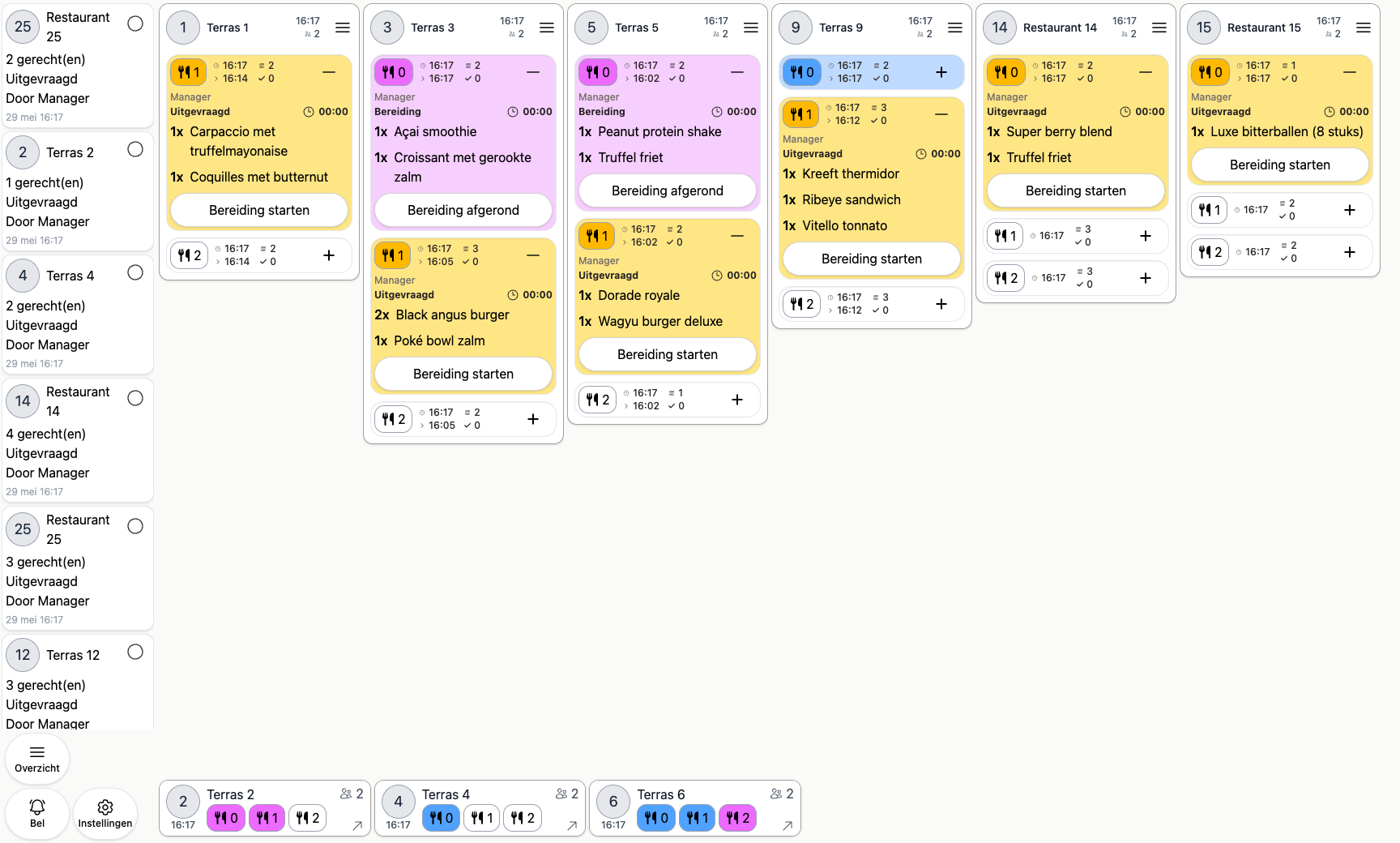
A kitchen display screen shows every open ticket for a kitchen, bar, or other preparation station, so the kitchen always knows exactly what’s left to make without printing anything.
Setting up a kitchen display screen
- Go to Backoffice > Devices and add a new device
- Choose Preparations or Runner
- Link the preparation stations you want, for example Kitchen or Bar
- Optionally set a chime that plays when a new order comes in
- Choose an Undock at value for the course state that brings a ticket out of the dock (see below)
Only orders with items for the linked preparation stations show up on this screen. See Preparation stations to link products to a station.
Working with tickets on the screen
Every ticket is shown on the screen, with a separate block per course (for example starter and main):
- Click Start preparation to mark a course as being prepared
- Click again to mark the course as Complete preparation
On the left of the screen is the feed: a live log of recent events, like new orders coming in. Check off a notification once you’ve seen it. Closed a ticket by accident? Bring it back with one tap from the feed.
The dock
At the bottom of the screen is the dock: a row of small tickets that don’t need attention right now. The main board above it only shows tickets that actually need work at this moment.
A ticket lands in the dock:
- Before any course has been requested yet (new orders wait here until they’re requested)
- After you complete a course, if there’s still another course to come
As soon as a course reaches the state you set as Undock at, the ticket automatically expands onto the main board. If there’s genuinely nothing left to do after a course is complete, the ticket isn’t docked — it’s closed right away.
You don’t have to wait for this to happen automatically: the menu on a ticket also lets you dock or undock it yourself, any time.
Runner screens
Besides a kitchen display screen for Preparations, you can also set up a runner screen. A runner screen shows which courses are ready to be served, so the runner knows exactly which tickets go to which table.
Runner screens have a dock too. Set Undock at to the Prepared state, and a ticket only comes out of the dock once the course is ready to be served.
Adjusting a ticket
Click the menu icon in the top right of a ticket to adjust it.
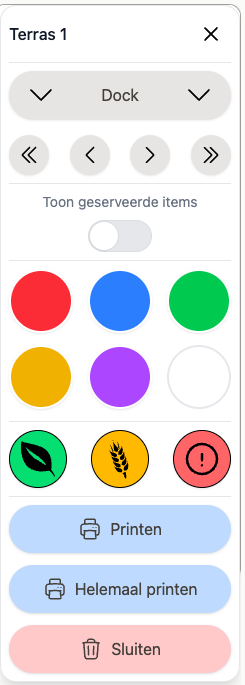
From here you can:
- Manually dock the ticket or bring it back
- Move the ticket on the board (all the way left, one spot, or all the way right)
- Show or hide delivered items on the ticket
- Give the ticket a colour, for example to spot a VIP table or allergy at a glance
- Add or remove allergy or diet markers
- Print the ticket again, or print all items at once, if a printer is linked to this device
- Close the ticket and remove it from the screen
Configuring preparation states
Go to Backoffice > Settings > Preparation states to adjust the colour, name, and button label for each state, for example to rename Start preparation to something that fits your kitchen better.
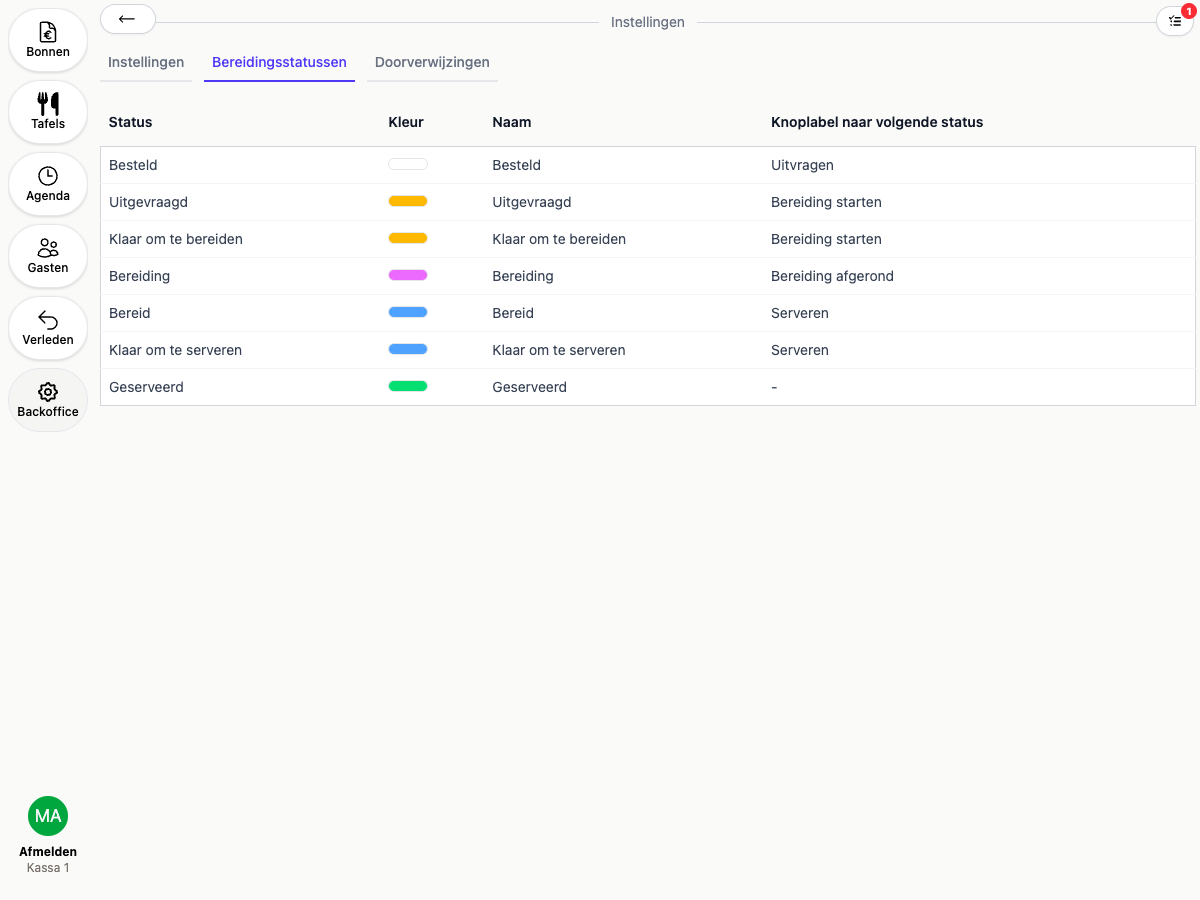
These states and colours apply to every kitchen display screen in your organization.