
Customer cards
Every customer in 20Tabs can have their own card. That doesn’t have to be a physical card: it can be one of three things:
- An Apple Wallet pass
- A Google Wallet pass
- A physical card, keyfob or sticker with an NFC chip, barcode or QR code
All three work the same way: the moment you scan or tap a card, 20Tabs immediately knows which customer it belongs to.
Adding a card
Apple or Google Wallet
See Loyalty to enable the loyalty card and add it to a customer.
A physical card, NFC tag, barcode or QR code
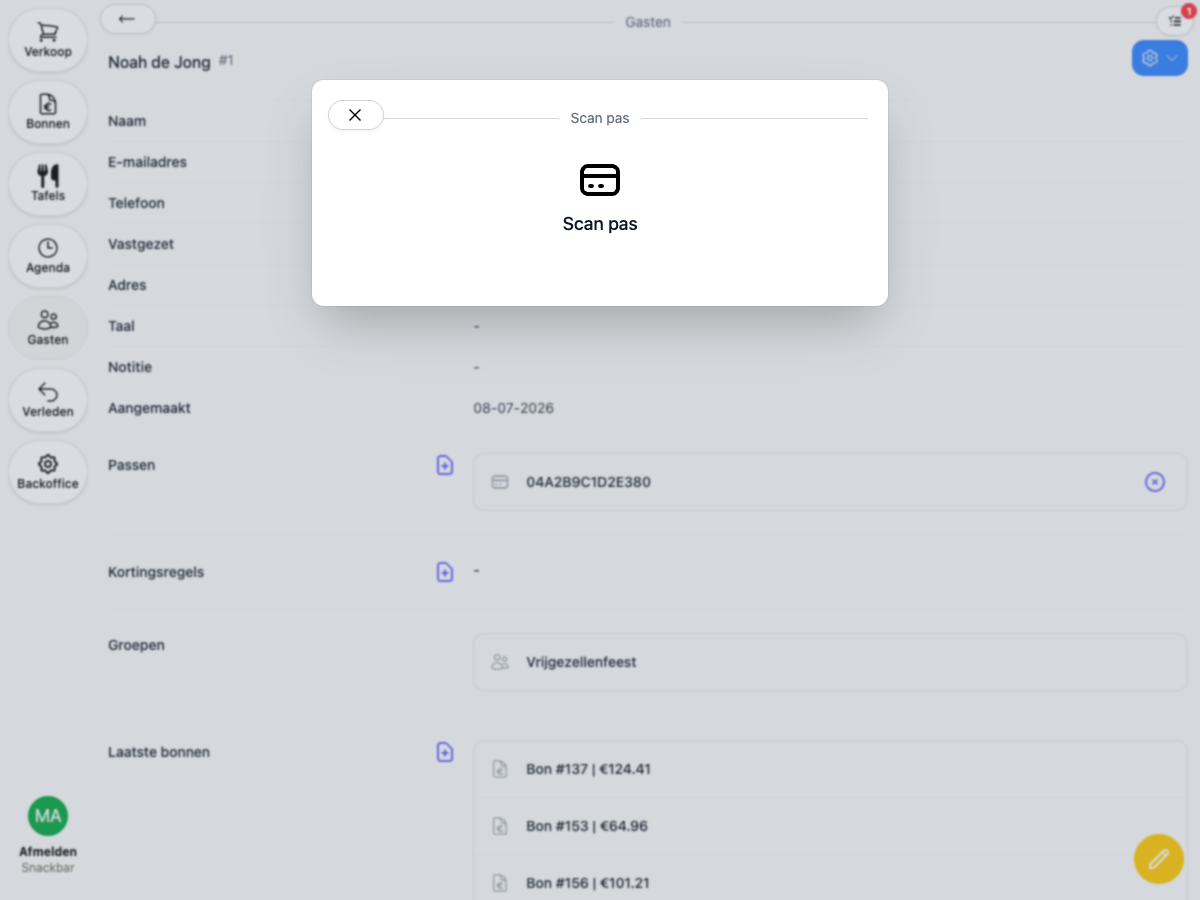
- Open the customer’s profile and click the plus icon next to Cards.
- A Scan card screen appears.
- Scan the card: tap an NFC card against the device, scan a barcode or QR code with the camera (Open camera on the mobile app), or use a connected handheld scanner.
- As soon as a code is scanned, the card is automatically saved to the customer.
A card can only be linked to one customer (or staff member, or group) at a time. If the card is already in use, you’ll get a notice and need to remove it from the other link first.
Where you can use a customer’s card
Once a customer has a card, you can use it anywhere 20Tabs asks for one.
Receipts
Scan the card anywhere on the Receipts page. There’s nothing to tap first. 20Tabs automatically opens that customer’s open receipt, or creates one if they don’t have one yet. Then tap Order to start adding items.
Direct sales
Ring up the order as usual and scan the customer’s card: you can do that right away, there’s nothing to tap first. The order is then automatically put on that customer’s tab. You can also tap Assign to look up a customer instead, or open the card-scan screen there.
Moving an order onto a customer
Already started an order on a table or as a direct sale, and want to link it to a customer afterwards? Tap Move on the receipt and choose Scan card. The receipt (or the selected items) moves onto that customer and merges with any receipt they already have open.
Linking a customer without moving the order
On an open receipt you can also just scan a card without tapping anything first. The customer gets linked to the receipt directly (you’ll see “Linked to …”), without the receipt itself being moved.
This is especially relevant for tables. Is the customer sitting at a table and do you want to link them to it (for discounts or loyalty, for example) without moving the receipt itself? Just scan the card on the table’s open receipt.
Self-service kiosk
Running a kiosk? Scan the customer’s card at the end of their order and it’s automatically put on their tab.