
Connect WooCommerce to 20Tabs
The 20Tabs WooCommerce integration pulls orders from your online shop straight into 20Tabs. Nothing to retype. An order placed on the site shows up in your POS within seconds.
Requirements
- An active 20Tabs subscription
- WooCommerce 8.0 or later
- WordPress 6.0 or later
Step 1: Install the plugin
Download the 20Tabs for WooCommerce plugin and install it via WordPress → Plugins → Add New Plugin → Upload Plugin.
Activate the plugin after uploading.

Step 2: Connect to 20Tabs
Once it’s activated, WordPress takes you straight to the settings page at WooCommerce → Settings → Integrations → 20Tabs.
- Enter your 20Tabs domain. This is the domain you log in to 20Tabs on, for example
yourvenue.20tabs.nl - Click Connect to 20Tabs

Step 3: Authorise in 20Tabs
You’ll be sent over to 20Tabs to authorise the connection.
- Log in to 20Tabs if you aren’t already
- Pick your device and log in as a staff member
- Hit Install to confirm the connection
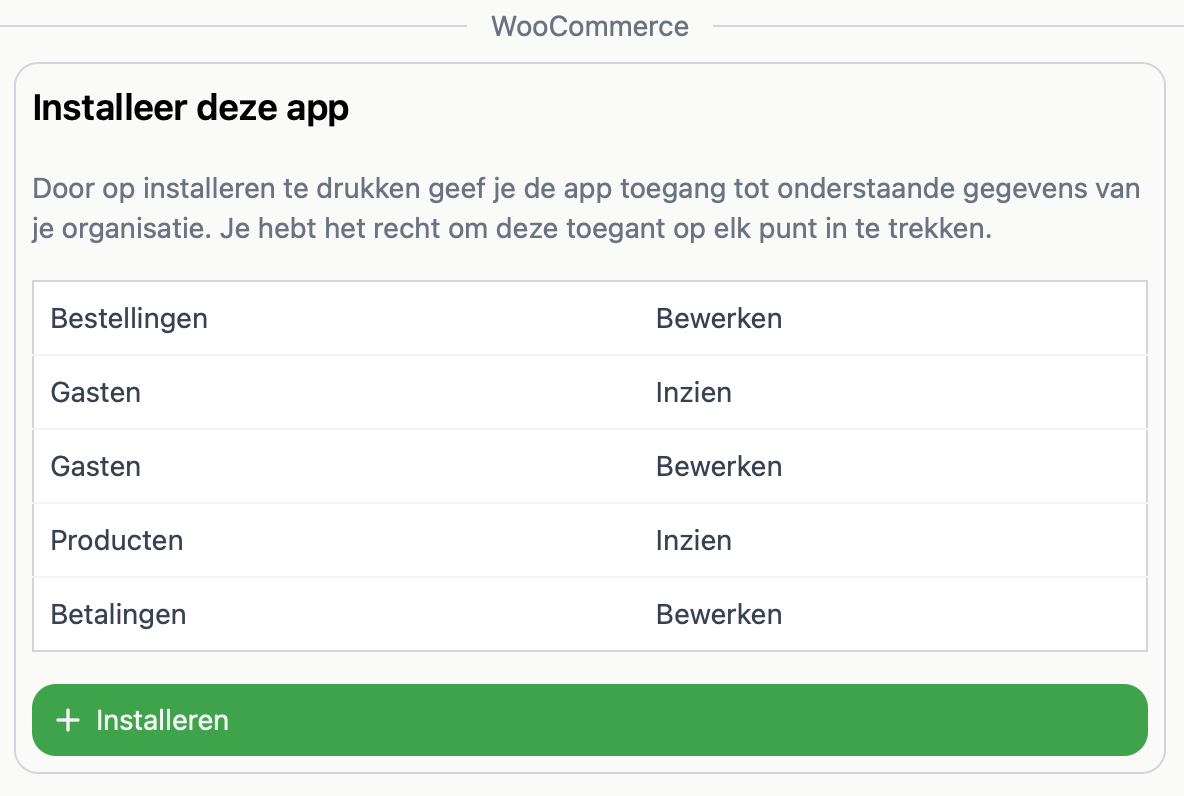
You’ll land back in your WooCommerce admin, with a green tick and the message Connected to 20Tabs.
Step 4: Map your products
Before orders can come through cleanly, each WooCommerce product needs to be linked to its match in 20Tabs.
- Go to WooCommerce → Products and open a product
- Find the 20Tabs panel in the right-hand column
- Start typing the product name and pick the matching 20Tabs product from the list
- Save the product
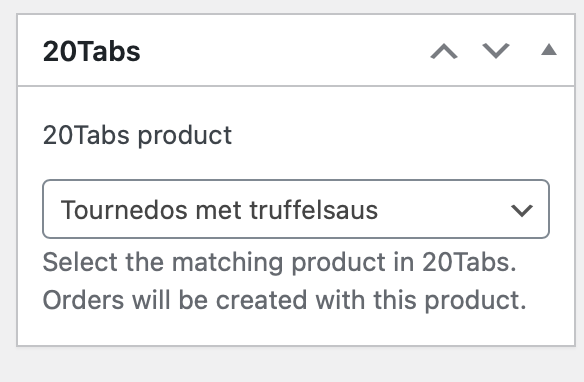
Repeat for every product you sell online.
Tip: If a product isn’t mapped, the order still lands in 20Tabs. It’s just attached to a generic WooCommerce product. You’ll get a task in 20Tabs reminding you to set up the mapping.
Step 5: Place a test order
Run a quick test order through your shop to make sure everything’s wired up.
- Go to your shop and order a product
- Complete the checkout
- Check that the order shows up in 20Tabs
Over in WooCommerce, you’ll see the note 20Tabs has received this order in the Order notes panel once it’s processed.
Disconnecting
If you ever need to pull the integration:
- Go to WooCommerce → Settings → Integrations → 20Tabs
- Click Disconnect
The integration is removed and 20Tabs stops receiving orders from your shop. You can then deactivate the plugin from WordPress → Plugins.