Linking devices with your pairing code

When you start your 20Tabs subscription you get a pairing code. That’s what links new devices to your account.

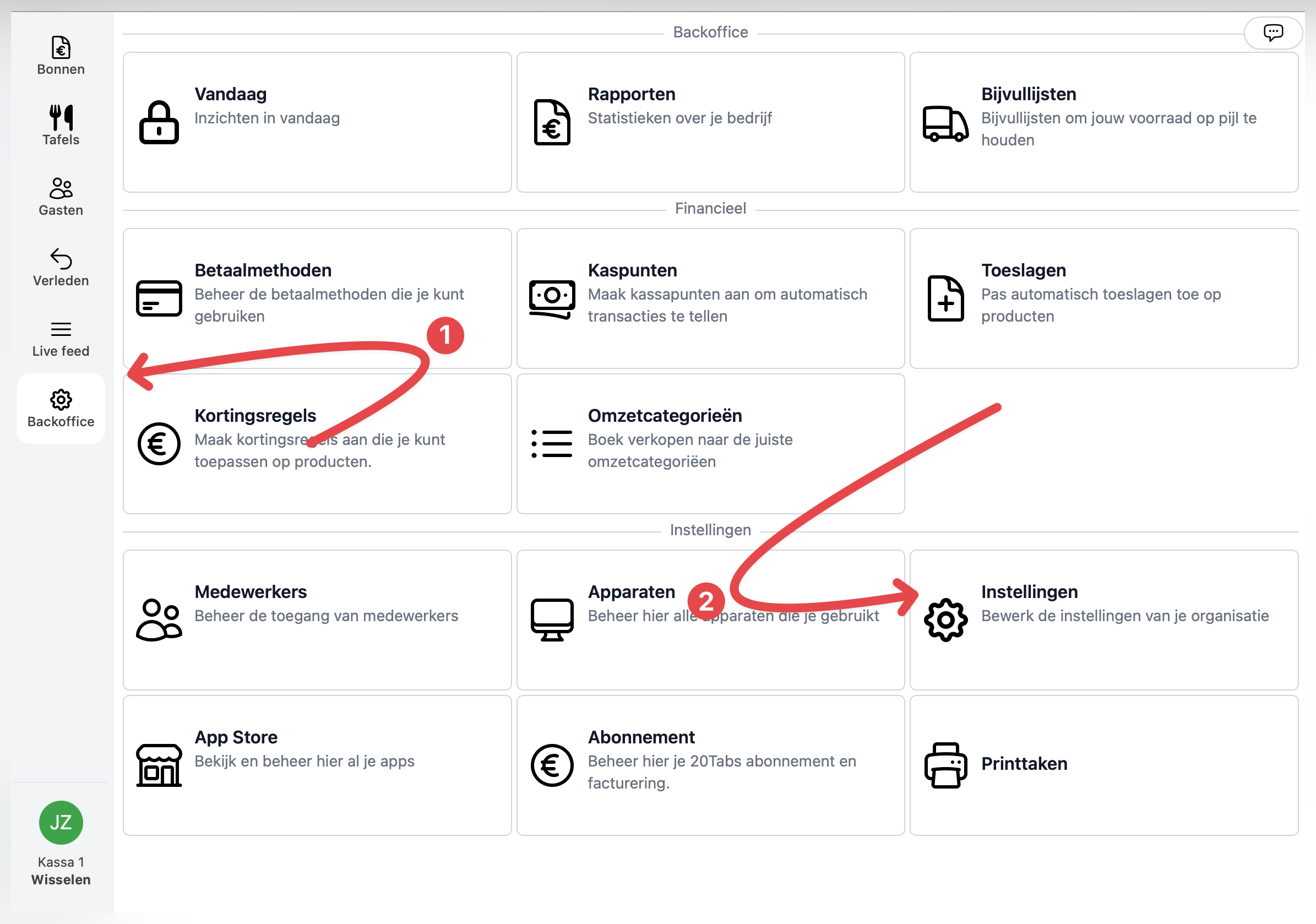
You can pull up your pairing code any time in the back office under Settings.

Finding your pairing code in the back office

To link a new device, do this:

  1. Head to 20tabs.app and click log in, or grab the app from the Google Play Store or Apple App Store on your phone
  2. Enter your pairing code
  3. You’re in. The device is now linked to your account.
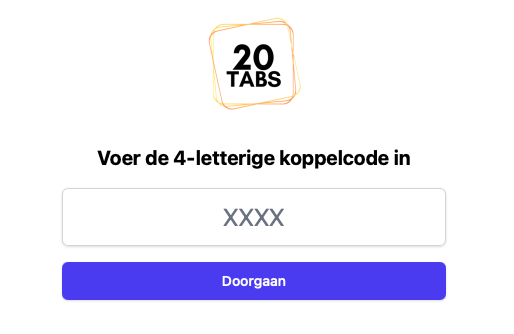
Logging in and entering the pairing code in the app

Ready to get started?

are a great day to get started with 20Tabs

Every feature is unlocked from day one. No contracts to sign, no haggling, no sales calls. Just software that works and that you can set up yourself. Curious how quickly we reply? Hit the chat button in the corner and see for yourself.

Try it free

Spin up a full account in minutes, with every feature unlocked.

Up and running in an hour

Process your first order within the hour. Our quick-start guide walks you through every step.

Try for free