Staff
There’s no cap on staff in 20Tabs, and everyone works under their own name. Any orders that aren’t tied to a table or a guest are attached to whoever’s logged in, so you can hop between devices and your tab follows you.
We don’t recommend running the same staff account on more than one device at the same time.
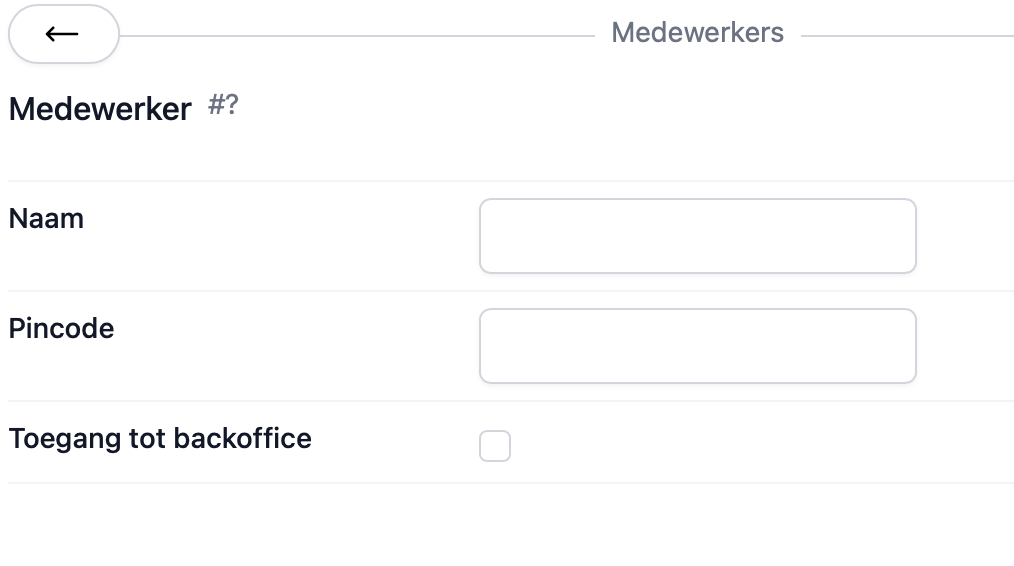
Adding a team member
- Open the back office and click Staff
- Tap the green plus button in the bottom right
- Enter the person’s name and a unique 4-digit PIN
- Give them back office access too, if they need it
- Save with the green tick
Linking a staff card
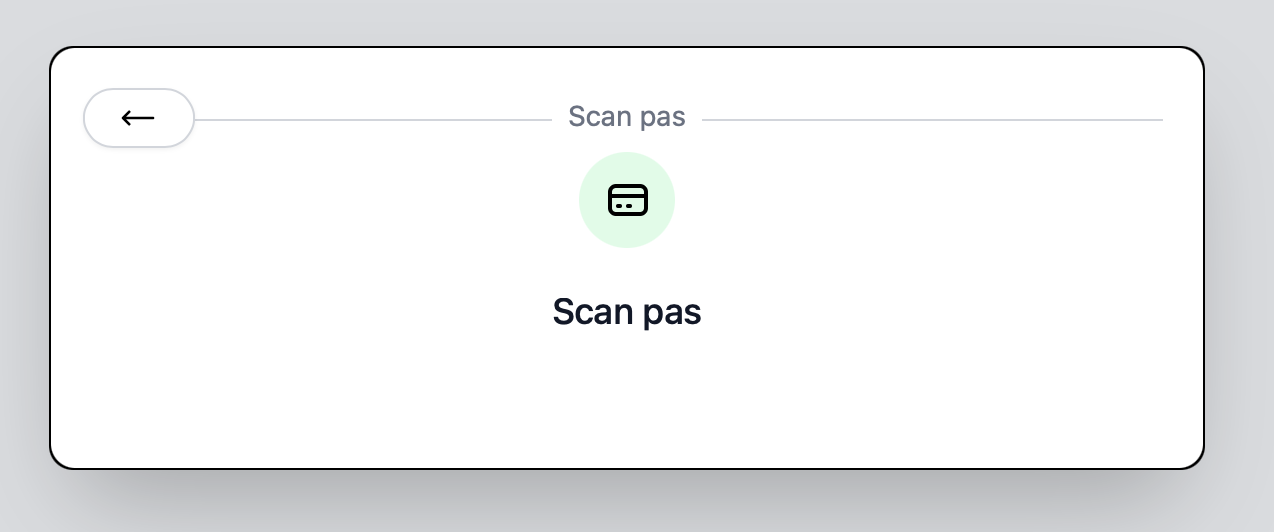
Tap the person’s name, then the plus button next to Card scan. Scan the card to link it to their account.
How staff log in
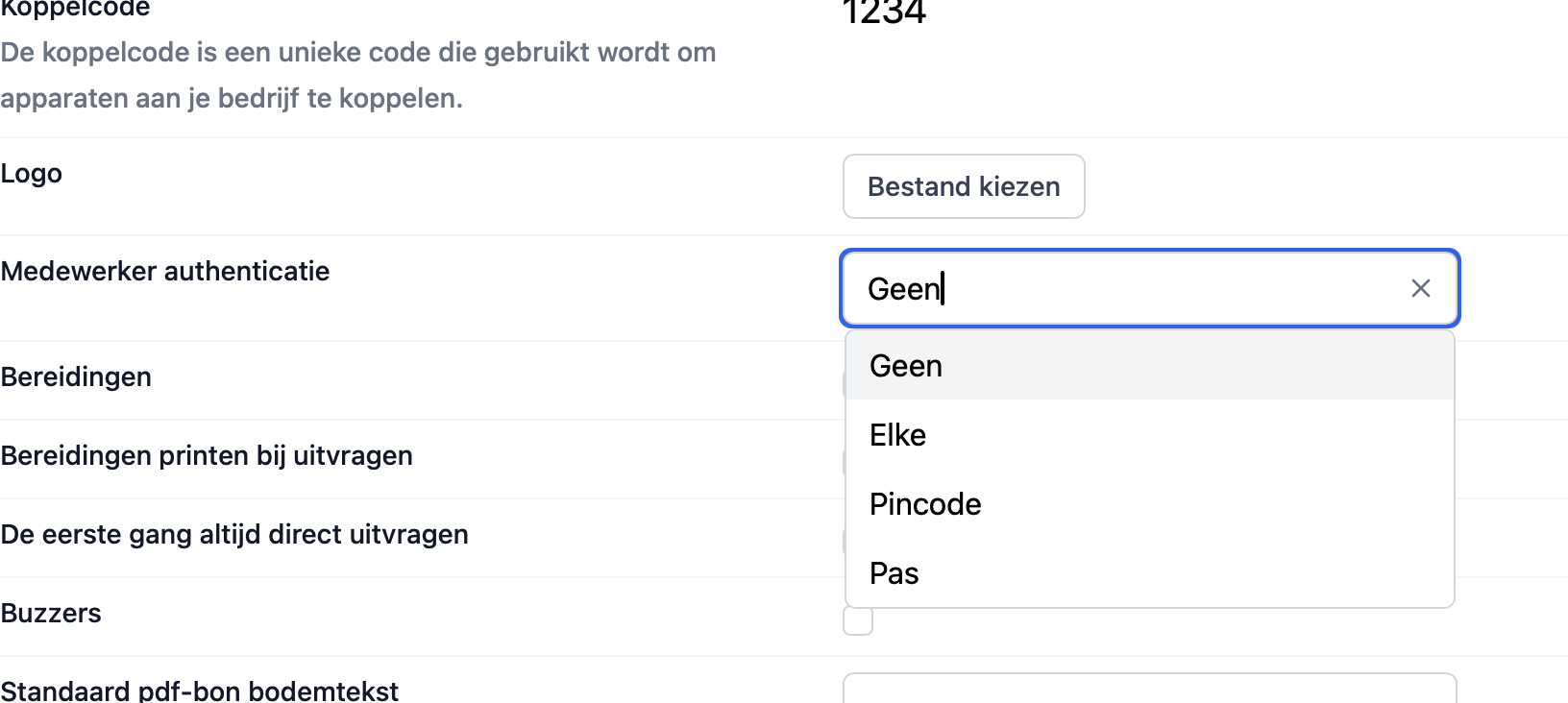
You control how staff sign in from back office settings. The options are:
- None: no verification. Just tap a name to start a shift.
- Any: either a PIN or a staff card works
- PIN: staff have to type their PIN
- Card: staff have to scan their card
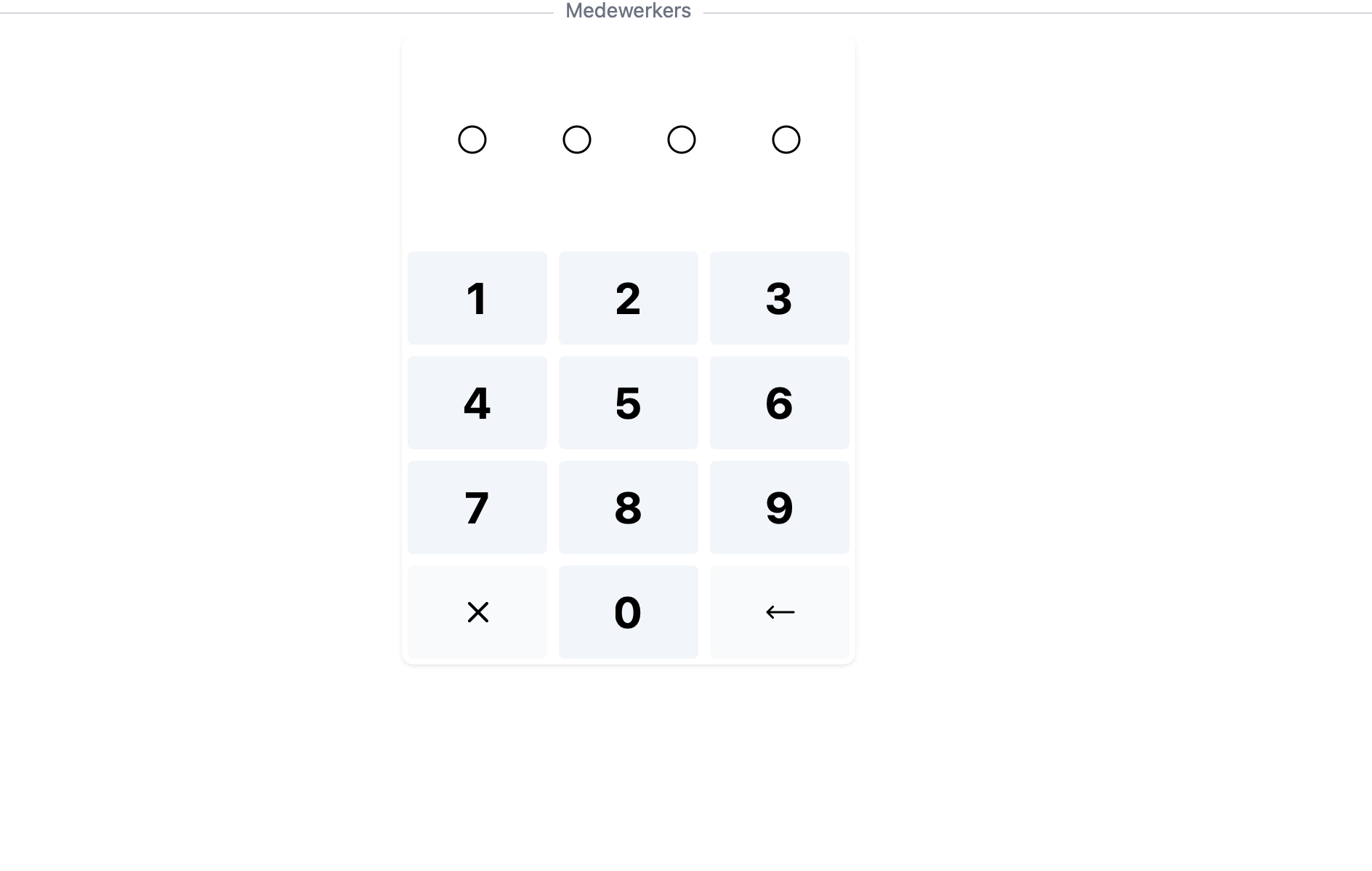
Signing in with a PIN
If you’ve turned on PIN verification, this is the screen staff land on. Punch in the PIN and you’re working.